AI Design Systems: What They Are and How We Build Them at Groto

AI Design Systems: What They Are and How We Build Them at Groto

A practical, design-first look at what AI design systems actually mean for teams, covering what makes a system AI-ready, real examples, and how we build them at Groto.

AI Design Systems: What They Are and How We Build Them at Groto

AI Design Systems: What They Are and How We Build Them at Groto

A practical, design-first look at what AI design systems actually mean for teams, covering what makes a system AI-ready, real examples, and how we build them at Groto.

AI tools are now reading your components, tokens, and documentation, not just your team. We break down what makes a design system genuinely AI-ready, with real examples from IBM, Shopify, GitHub, and our own work at Groto.

What makes a design system actually ready for AI tools, explained clearly.

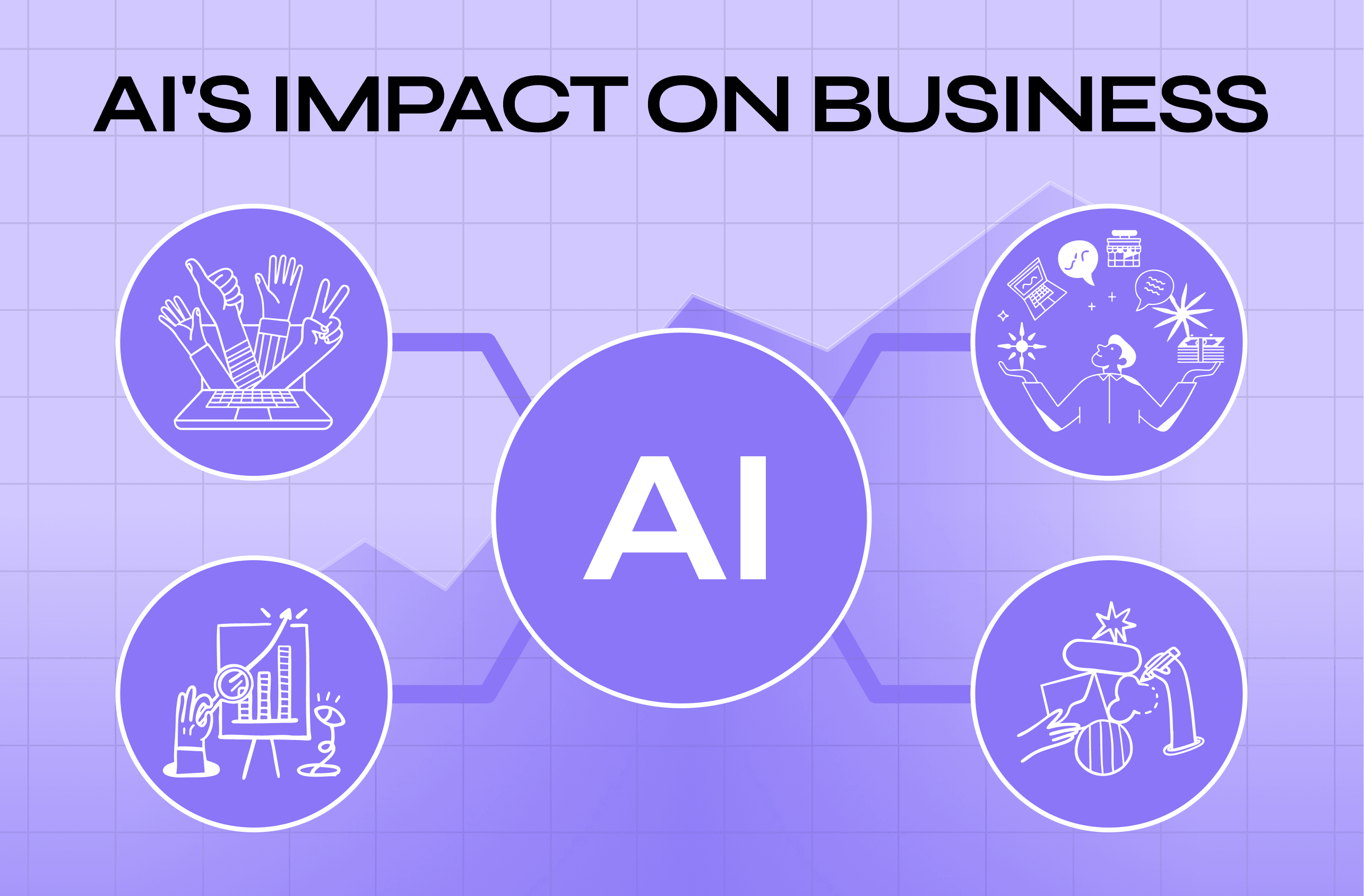
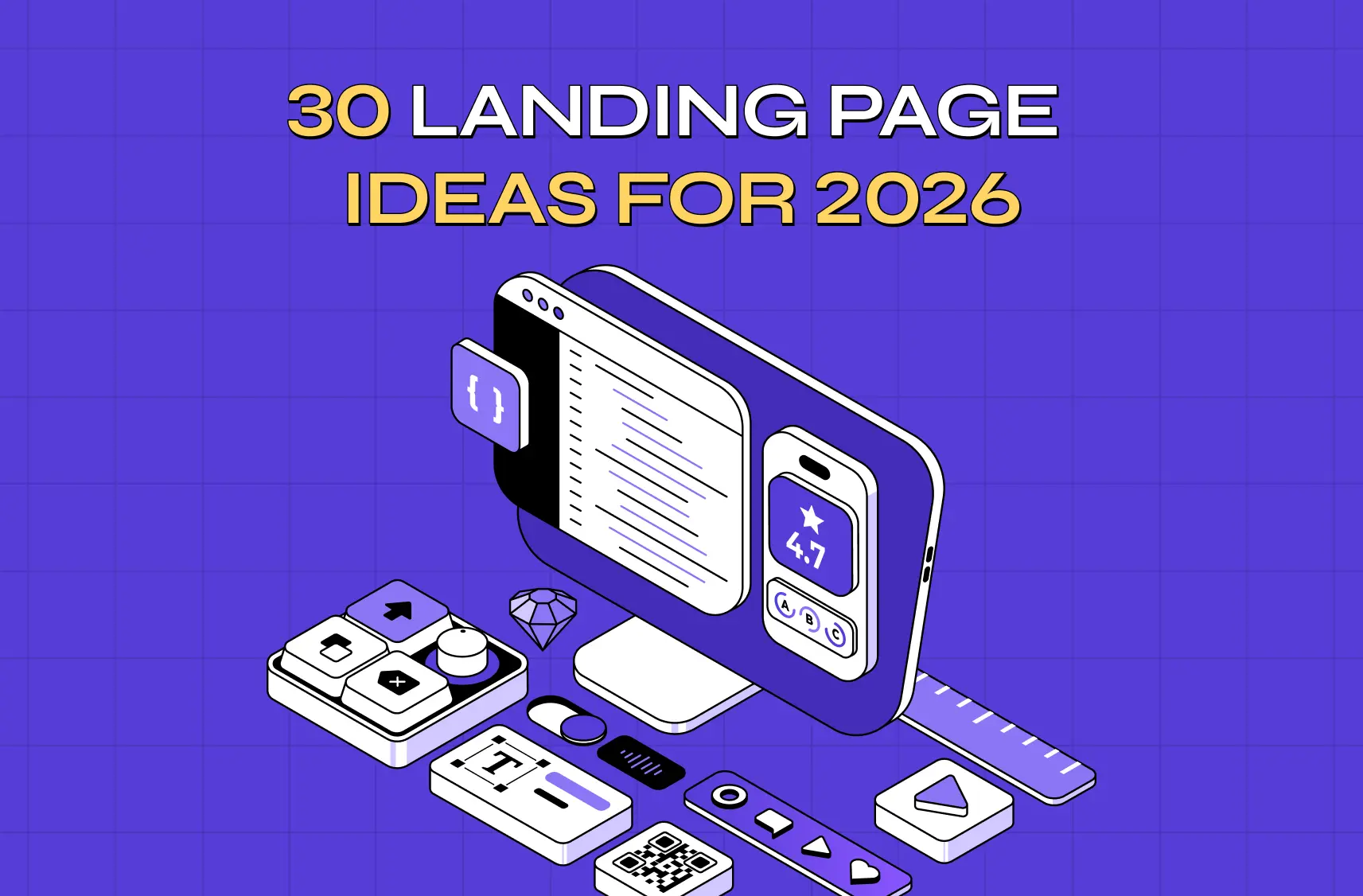
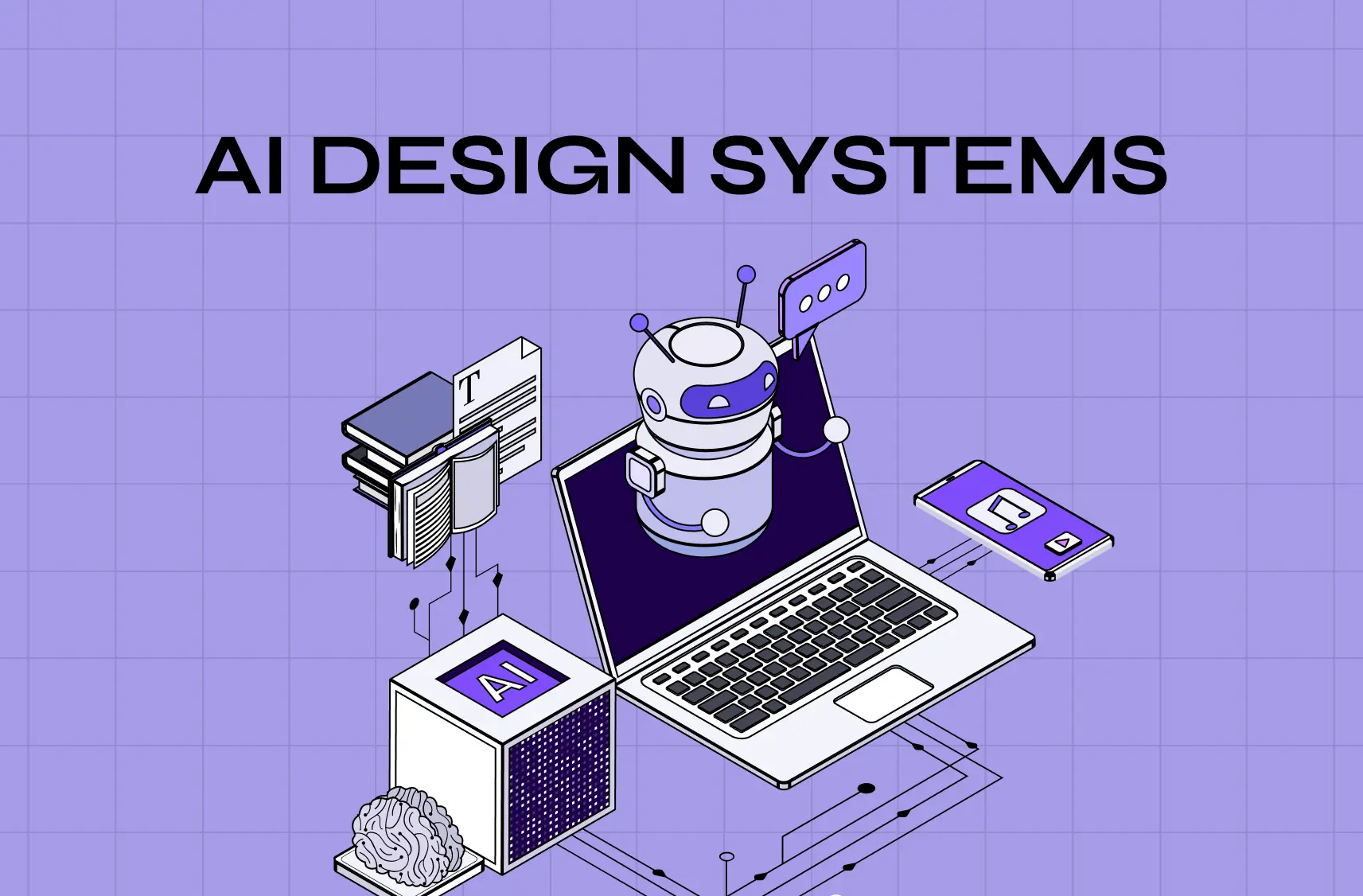
Illustration of AI, design assets, and digital tools connected around a laptop, representing AI-powered design systems and workflows.

TL;DR

  • AI design systems are design systems structured so AI tools can read, understand, and build with them, not just style guides that humans browse.

  • The shift is about machine-readable metadata: clear tokens, documented components, and consistent naming that an AI agent can actually parse.

  • We have seen this play out first-hand across AI-heavy products we have designed, including Camb.ai, Pathways, LearnSphere, and Gini.

  • Getting there does not require rebuilding everything. It starts with fixing your foundations: naming, tokens, and documentation.

  • Figma's AI features and MCP-based workflows are making this more accessible, but the underlying discipline is still good design system practice.

  • We have added 6 FAQs at the end to cover the questions we get asked most often on this topic.

What Are AI Design Systems

A design system used to be built for one audience: your design and dev team.It lived in Figma, maybe a Storybook instance, and a set of Notion pages nobody read end to end.

That audience has quietly doubled. AI is transforming how UI gets built: tools like Cursor, Claude, and Figma's own AI features are now reading your components, tokens, and documentation to generate UI on your behalf. When we talk about a design system for AI, we mean the same foundational assets your team already uses, tokens, components, and guidelines, but structured clearly enough that a machine can interpret them without guessing.

That "without guessing" part matters more than it sounds. Most AI tools work through pattern matching, and gaps in your system get filled with assumptions, not questions. A few things follow from that:

  • If your button component has three variants but only two are documented, the AI will not ask for clarification. It will invent the third one, and it usually will not match your brand.

  • If a spacing rule exists only in a designer's head and not in the file, the AI has no way to know it.

  • If naming is inconsistent between Figma and code, the AI has to guess which one is correct, and it often guesses wrong.

This is the practical difference we care about at Groto: a system built only for humans tolerates ambiguity because people can ask each other. A system meant to work with AI cannot afford that same ambiguity, because the AI has nowhere to ask.

The AI onboarding playbook top teams use to boost activation.

Reduce first-session confusion, speed up time-to-value, and build user trust, built from real onboarding audits of AI products.

No Spam. Free Lifetime

The AI onboarding playbook top teams use to boost activation.

Reduce first-session confusion, speed up time-to-value, and build user trust, built from real onboarding audits of AI products.

No Spam. Free Lifetime

Why This Matters for Design Teams Right Now

As AI reshapes everyday UX practices, we are seeing three things happen at once across the products we design.

  • More clients are building AI-native products themselves, integrating AI into their UX across dubbing platforms, hiring assistants, and health trackers where the interface constantly adapts to model output, not just static content.

  • Teams are using AI coding assistants daily. The design system is quietly becoming the instruction manual those assistants read from, whether anyone planned for that or not.

  • The gap between "looks right" and "is actually correct" is widening. AI-generated UI can look plausible while missing spacing, states, or accessibility details entirely, and those gaps are easy to miss in a quick review.

  • Review cycles are getting longer, not shorter. When AI-generated components almost match the system, teams spend more time catching small inconsistencies than they would building it correctly the first time.

Agents don't just miss detail, they sometimes invent it. If a pattern isn't documented, some AI tools will still produce a plausible-looking variant instead of flagging the gap. Even design system veterans like Dan Mall have pointed out that AI still can't judge what actually looks right versus what merely looks plausible.

Opening a system up to AI tools also opens it up more broadly. An MCP server or exportable API that exposes your tokens and components to an AI assistant can expose them to more than you intended if access isn't scoped carefully.

None of this replaces design judgment. AI can produce a variant fast. It still takes a person to decide if that variant is the right one for your product.

None of this means your design system needs an overhaul. It means the same hygiene that has always made systems good, clear naming, documented states, consistent tokens, now has a second beneficiary. Your team gets a system that is easier to use. The AI tools your team relies on get a system they can actually parse.

What an AI-Ready Design System Actually Gets You

  • Faster, more reliable AI-generated UI. Once tokens and states are documented clearly, an AI tool spends less time guessing and more time producing high-fidelity UI close to what you'd have built by hand.

  • Consistency across roles and brands. LearnSphere's three different user roles, admins, teachers, and students, run on one documented system instead of three separate design languages.

  • Fewer review cycles. Catching drift after an AI tool guesses wrong costs more time than building the underlying structure once.

  • Prompt-based generation that actually holds up. Vibe coding only produces something usable when there's a system underneath constraining it, not just a blank canvas.

  • A system that scales past your own team. The same clarity that helps an AI tool also helps new hires, contractors, and outside teams pick up the system faster.

What Makes a Design System AI-Ready
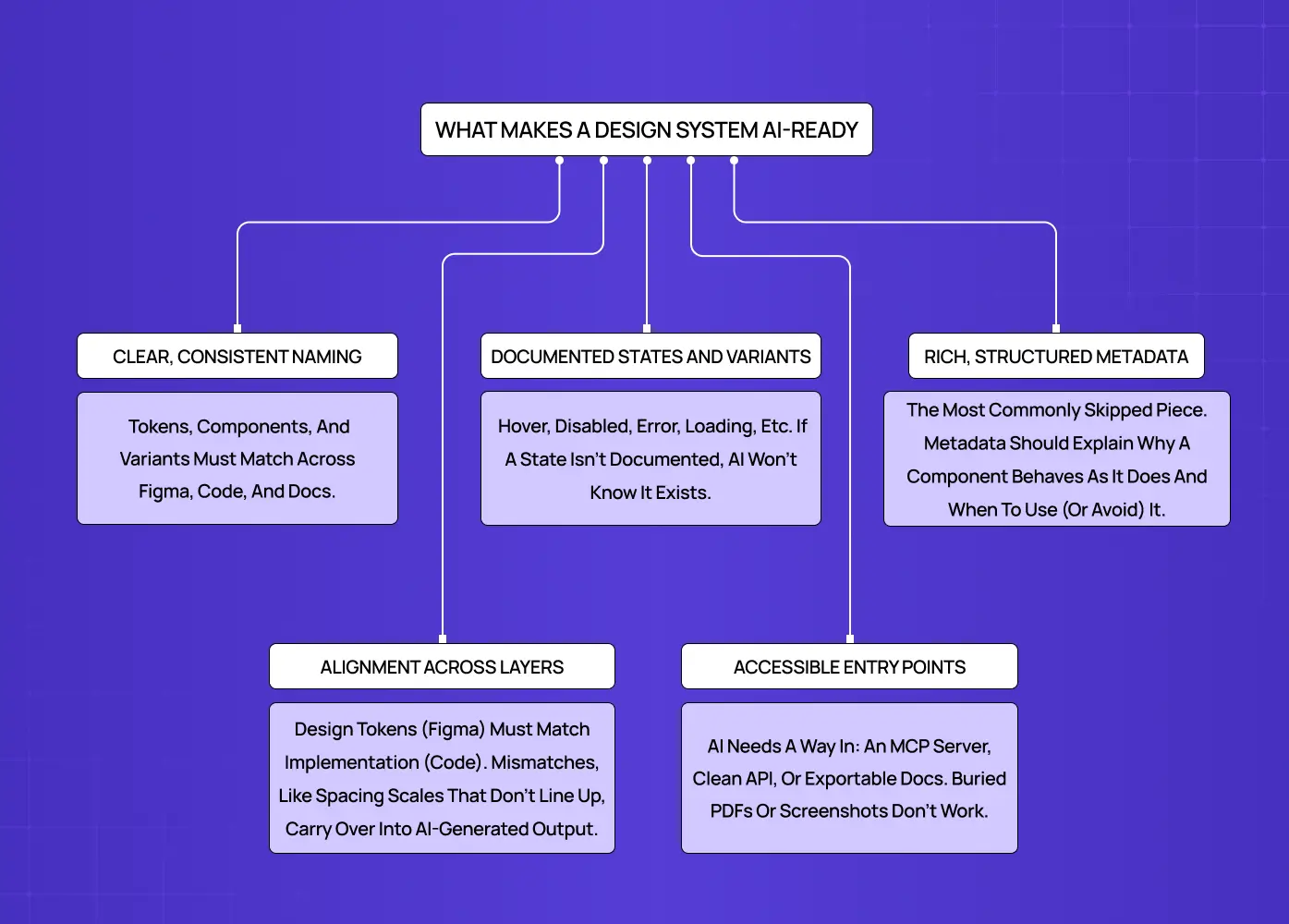
Diagram outlining the key characteristics of an AI-ready design system, including consistent naming, metadata, accessibility, and documentation.

Beyond the core design principles every system rests on, a handful of things separate a system that works well with AI tools from one that quietly confuses them.

Clear, consistent naming

Every token, component, and variant should be named the same way everywhere, in Figma, in code, and in documentation. If your "primary button" in Figma is called something different in your codebase, an AI tool has no reliable way to connect the two.

Documented states and variants

Hover, disabled, error, loading. If a state exists but is not documented, most AI tools will not know it exists either.

Rich, structured metadata

This is the piece most teams skip. Metadata explains not just what a component looks like, but why it behaves the way it does, when to use it, and when not to. That context is what turns a component library into something closer to machine-readable design systems.

Alignment across layers

Design tokens should match implementation. If your spacing scale in Figma does not match your CSS variables, that mismatch shows up in AI-generated code too.

Accessible entry points

Whether it is an MCP server, a well-organized API, or simply clean, exportable documentation, AI tools need a door in. Buried PDFs and screenshots do not count.

Where AI-Ready Systems Fall Short (And How to Manage It)

None of this is automatic, and treating it as a solved problem creates its own risks.

  • AI tools sometimes invent variants that don't exist. If a pattern isn't documented, some tools will still produce a plausible-looking answer instead of flagging the gap. The fix is the same one that runs through this whole piece: document states explicitly, including the ones you think are obvious.

  • Accessibility and edge-case states are the easiest thing to miss. An AI tool trained mostly on visual patterns can generate something that looks right while missing focus states, screen reader labels, or keyboard navigation entirely. Review AI-generated components against your accessibility checklist the same way you would a junior designer's first pass.

  • Over-reliance can quietly erode design judgment. Design system veterans like Dan Mall have pointed out that AI still can't judge what's meaningful to a human audience versus what just looks plausible. Treat AI output as a fast first draft, not a finished decision.

  • Exposing your system to AI tools can expose more than intended. An MCP server or API that opens your components and tokens to an AI assistant can also open proprietary naming conventions, internal-only components, or unreleased brand work if access isn't scoped carefully. Set clear boundaries on what the server exposes before turning it on broadly.

Building AI-Ready Systems in Figma

A lot of the recent momentum here is happening inside Figma itself. Figma's Dev Mode and its growing set of AI features are pushing teams to think about design systems in Figma differently, less as a static file, more as a structured source of truth that plugins and AI agents can query directly.

If you are exploring how to create a design system in Figma with AI, the starting point is usually the same regardless of tool:

  • Clean up components and variants first. Throwing AI at a messy file to "fix" it tends to produce inconsistent results, because there is nothing structured for the AI to learn from.

  • Name things the way you want them read. Figma layer names often end up as the labels AI tools use when generating or describing components, so vague names create vague output.

  • Use Dev Mode as documentation, not just handoff. Annotations and specs left there are increasingly what AI plugins reference directly.

  • Treat AI features as an accelerator, not a fix. They speed up work on a system that is already organized. They do not organize a messy one for you.

  • Know what Figma's MCP server actually does. It lets tools like Cursor and Claude query your Figma file directly, pulling components, variables, and structure instead of just a flat image. It only helps if the file underneath is organized, but it's the connective layer worth knowing about if you're evaluating AI-assisted workflows.

Figma's push to let teams make design system integration part of their standard workflow, rather than a bolt-on plugin, is a good signal for where this is heading. The tools are catching up to something design systems teams have known for years: structure is what makes reuse possible, for people and now for AI.

Real Examples of AI-Ready Systems in Action

This is not just a Groto idea. A few well-known design systems have already made this shift publicly, and their approaches point at different parts of the same problem.

IBM's Carbon Design System
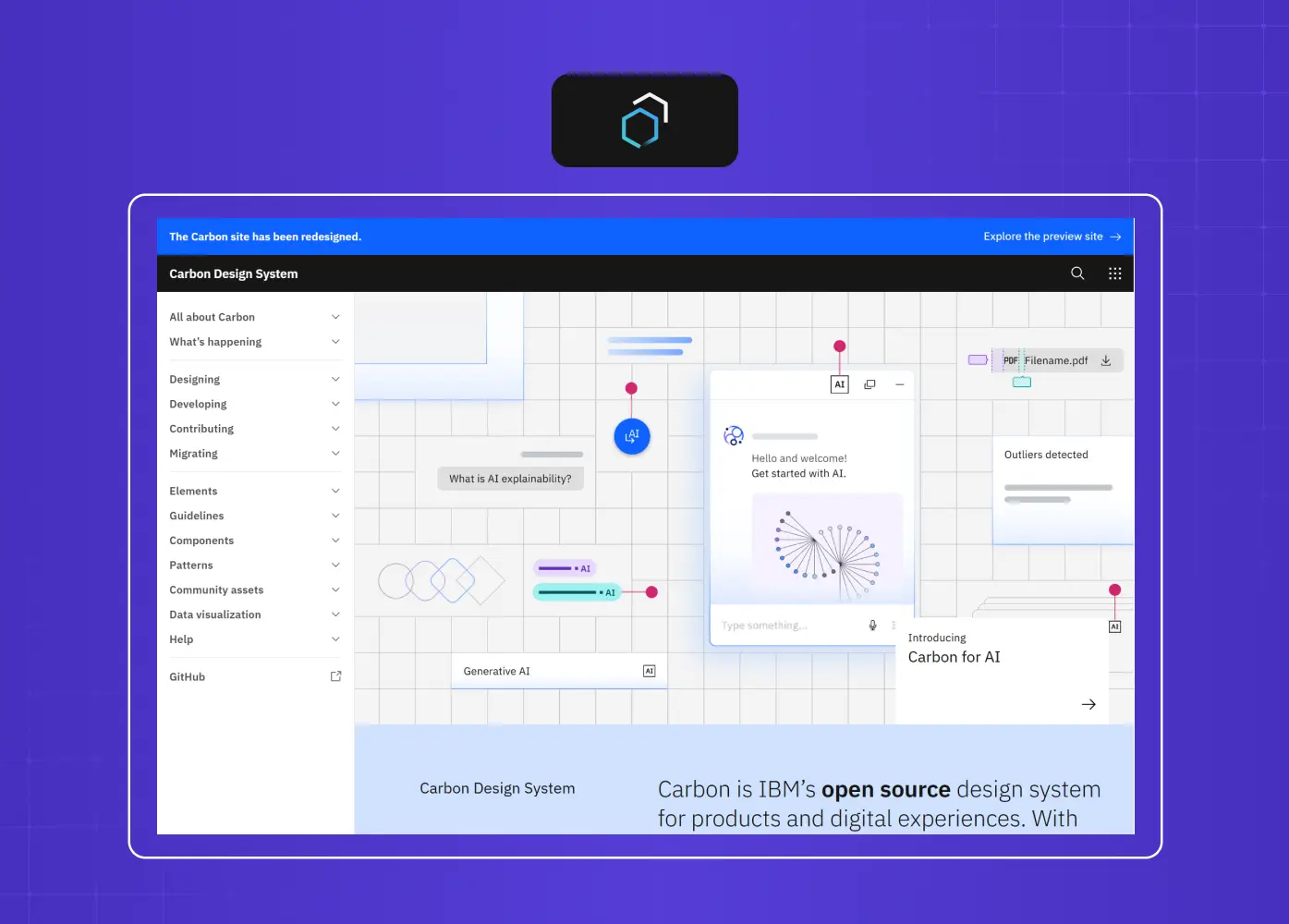
Screenshot of IBM's Carbon Design System documentation highlighting AI integration and reusable design components.

IBM built a dedicated MCP server that lets AI tools query Carbon's components, tokens, and icons directly, so generated code follows IBM's actual spec instead of a guess at it. Carbon also introduced a separate set of tokens called Carbon for AI, used specifically to give AI-generated content its own distinct, transparent visual identity within a product, so users can tell what came from a model and what did not.

Shopify's Polaris

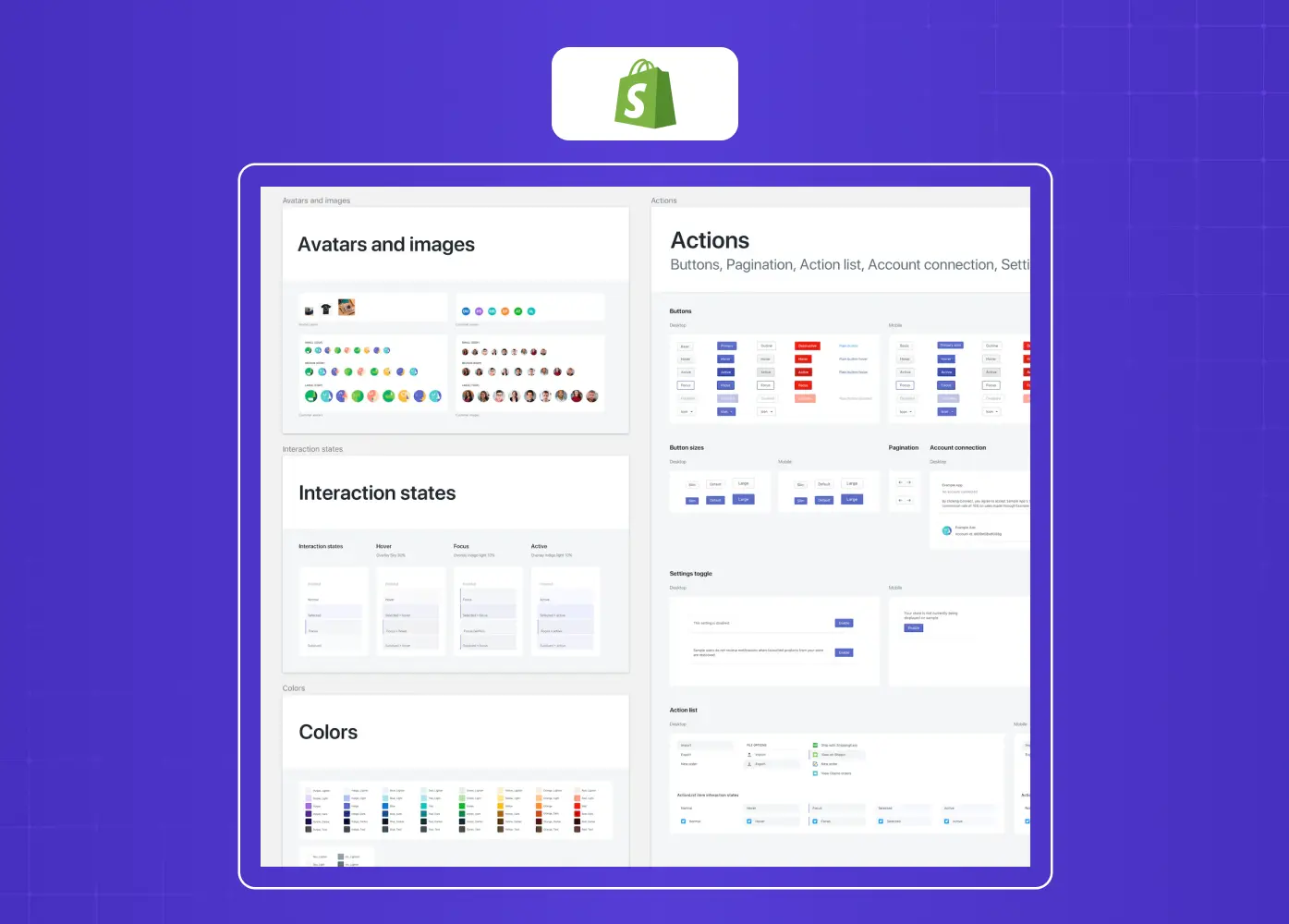
Screenshot of Shopify's Polaris Design System showcasing UI components, interaction states, colors, and design patterns.

Shopify’s Polaris ships a first-party dev MCP server that exposes Polaris tooling directly to AI coding assistants like Cursor and Claude, which is why AI-generated admin UI built on Shopify tends to hold up structurally instead of drifting from the system.

GitHub's Primer
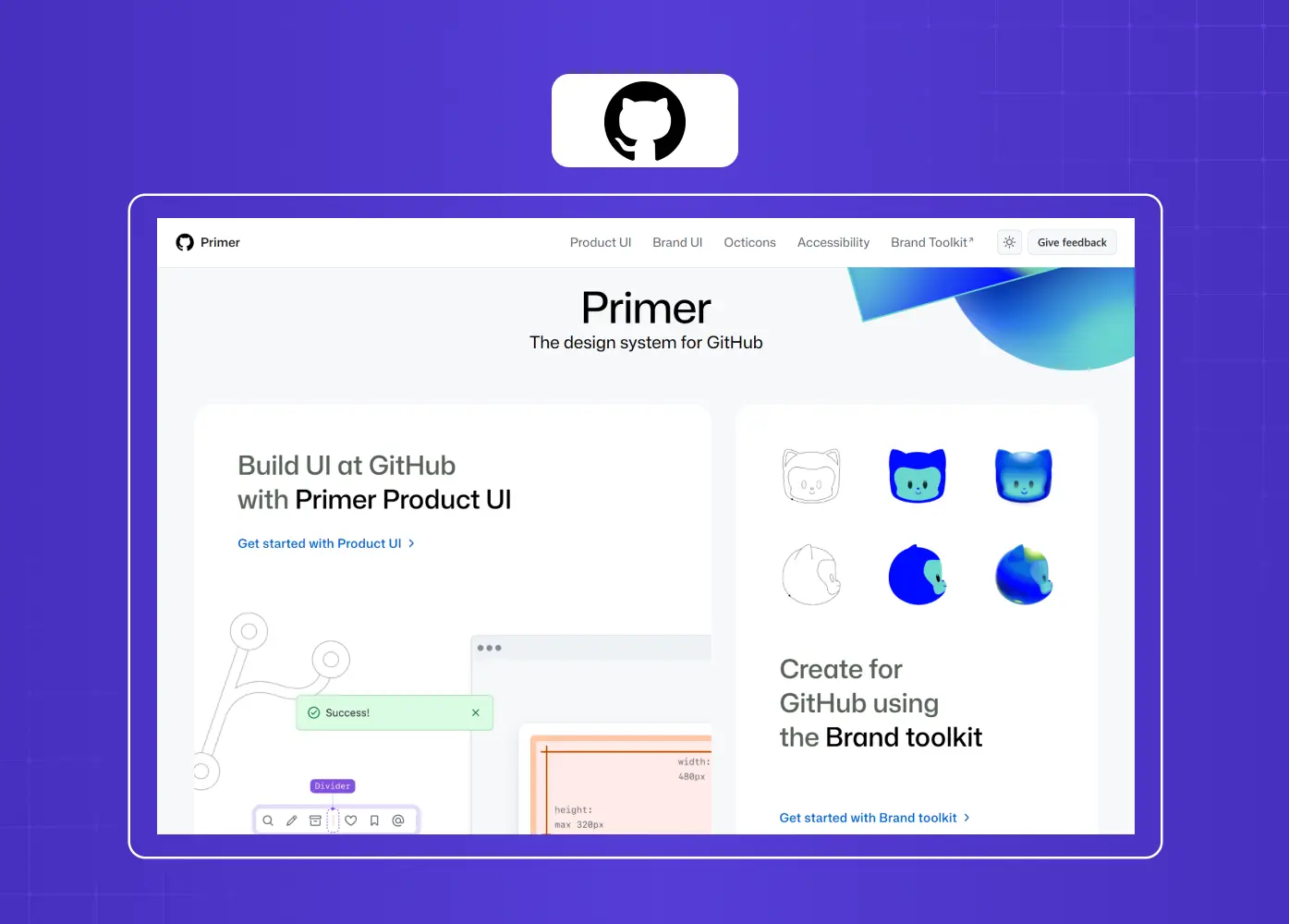
Screenshot of GitHub's Primer Design System featuring reusable UI components and brand assets for product development.

GitHub’s Primer team took a governance-first approach. Rather than letting AI agents touch production code freely, they restricted agents to only opening issues, never merging changes, keeping a human in the loop for every agentic contribution to the system.

Primer's approach also points at a useful distinction that's becoming clearer across the industry: there's a difference between a design system an AI can read, and one an AI can contribute to. Most of what we've covered so far, tokens, documented states, structured metadata, makes a system readable. Primer's issues-only restriction is what a system looks like once it starts allowing agents to contribute, a preview of how teams use agentic AI in production, with a human still approving every change before it ships. Most teams are better served starting with the first tier and treating the second as something to grow into.

Indeed's design systems team ran one of the more rigorous tests of this question. After converting 77 components into structured JSON and benchmarking it against long-form Markdown documentation across more than 1,000 prompts, they found JSON delivered higher accuracy at roughly 80% fewer tokens per query, and the resulting pipeline has powered thousands of AI-generated prototypes since.

Meta's Astryx, released as an open-source React design system in mid-2026, takes a similar bet further. Alongside its component library, it ships a CLI that returns a self-describing JSON manifest of every command and component, so an AI agent can query the system directly instead of scraping documentation.

We do not think about this only in the abstract either. Several products we have designed at Groto only work because the underlying system was built to handle AI-driven complexity from day one.

Camb.ai
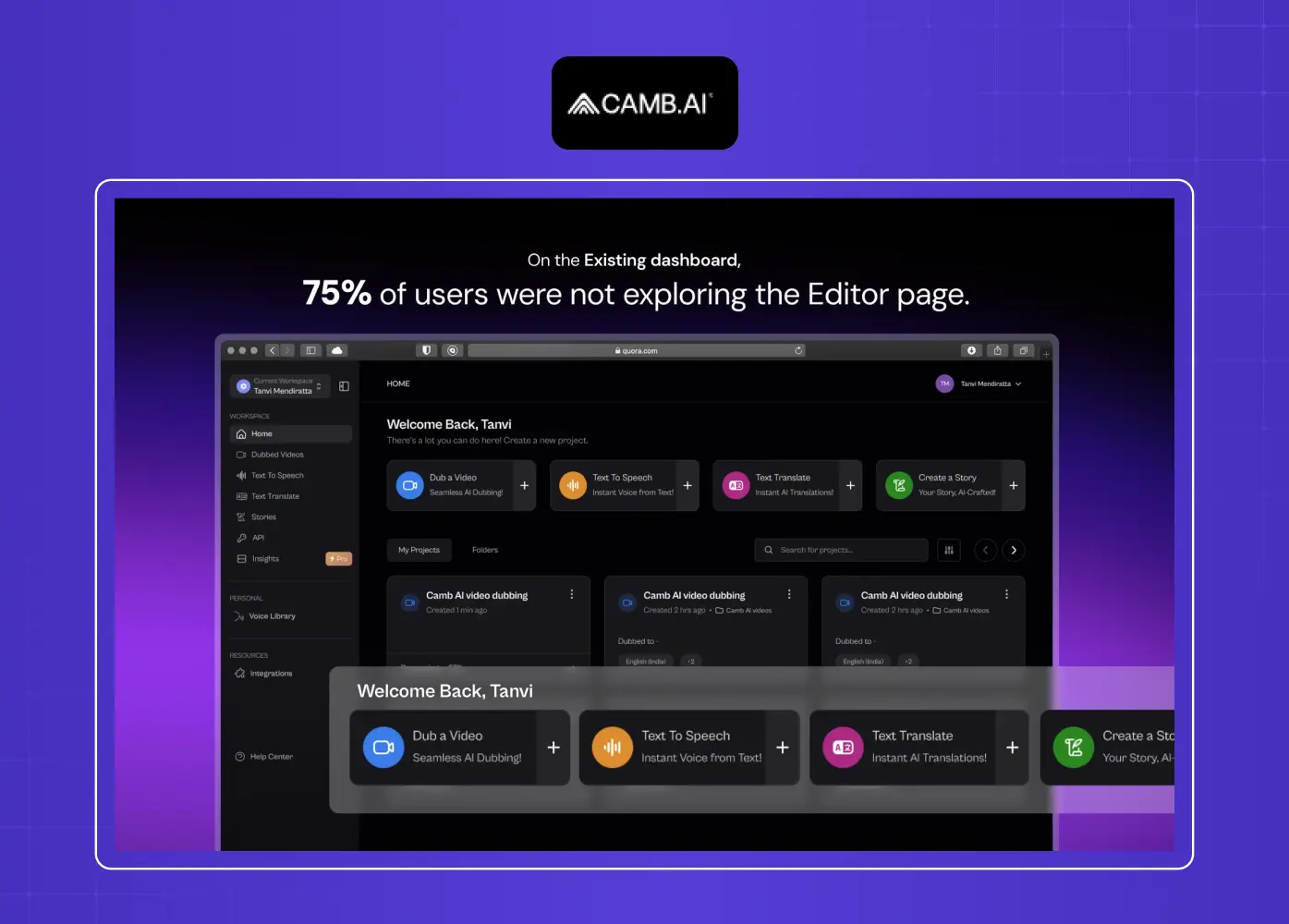
Screenshot of the Camb.ai dashboard illustrating a UX redesign focused on improving feature discoverability and user engagement.

Camb.ai, an AI dubbing platform supporting real-time translation across 140-plus languages, needed a UI that could stay consistent even as content and language variants shifted constantly. A tightly defined component system was what let the interface stay usable across that variability.

PathwaysX
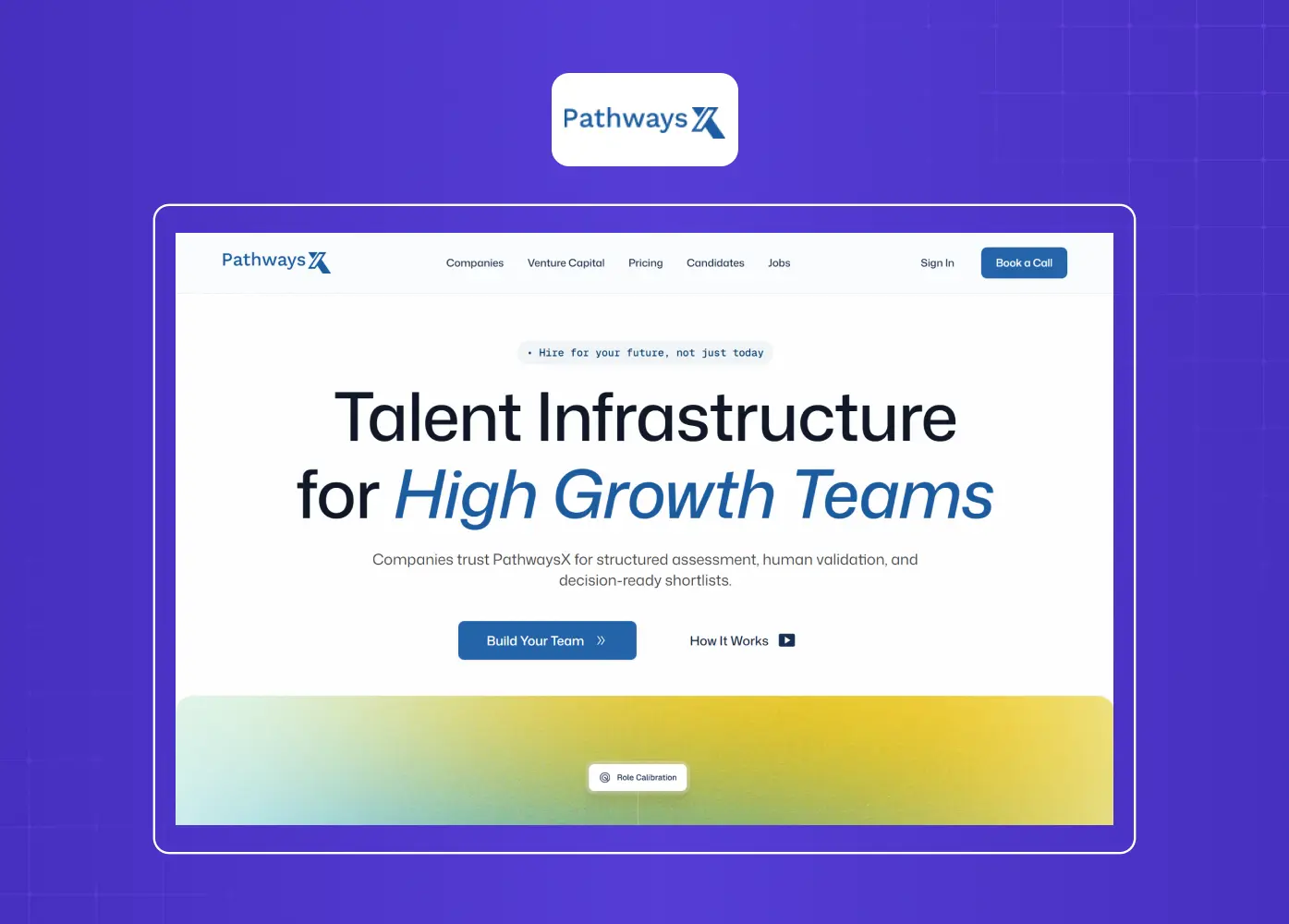
Homepage of the PathwaysX website showcasing a modern, conversion-focused design for a talent infrastructure platform.

PathwaysX, a B2B hiring platform powered by personality-based AI assessments, relies on a design system where states and data-driven components had to be documented clearly enough for a fast-moving product team to build on without constant back and forth.

LearnSphere 
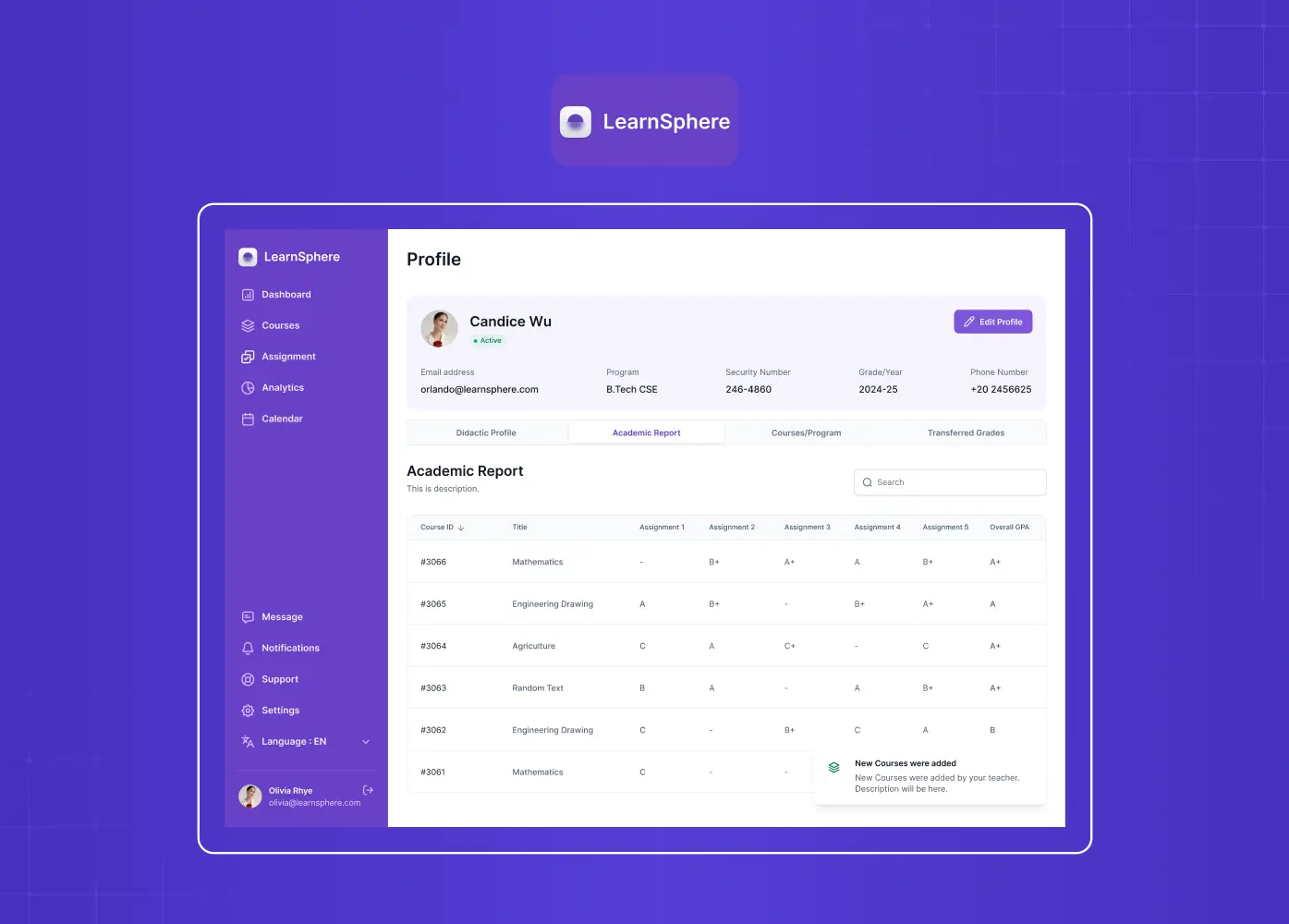
Student profile dashboard displaying academic records, navigation, and performance information in a learning management system.

Learnsphere, an edtech platform, needed one system to serve three very different user roles, admins, teachers, and students, each seeing AI-personalized content. A shared, well-documented component library made that role-based flexibility possible without three separate design languages.

Gini
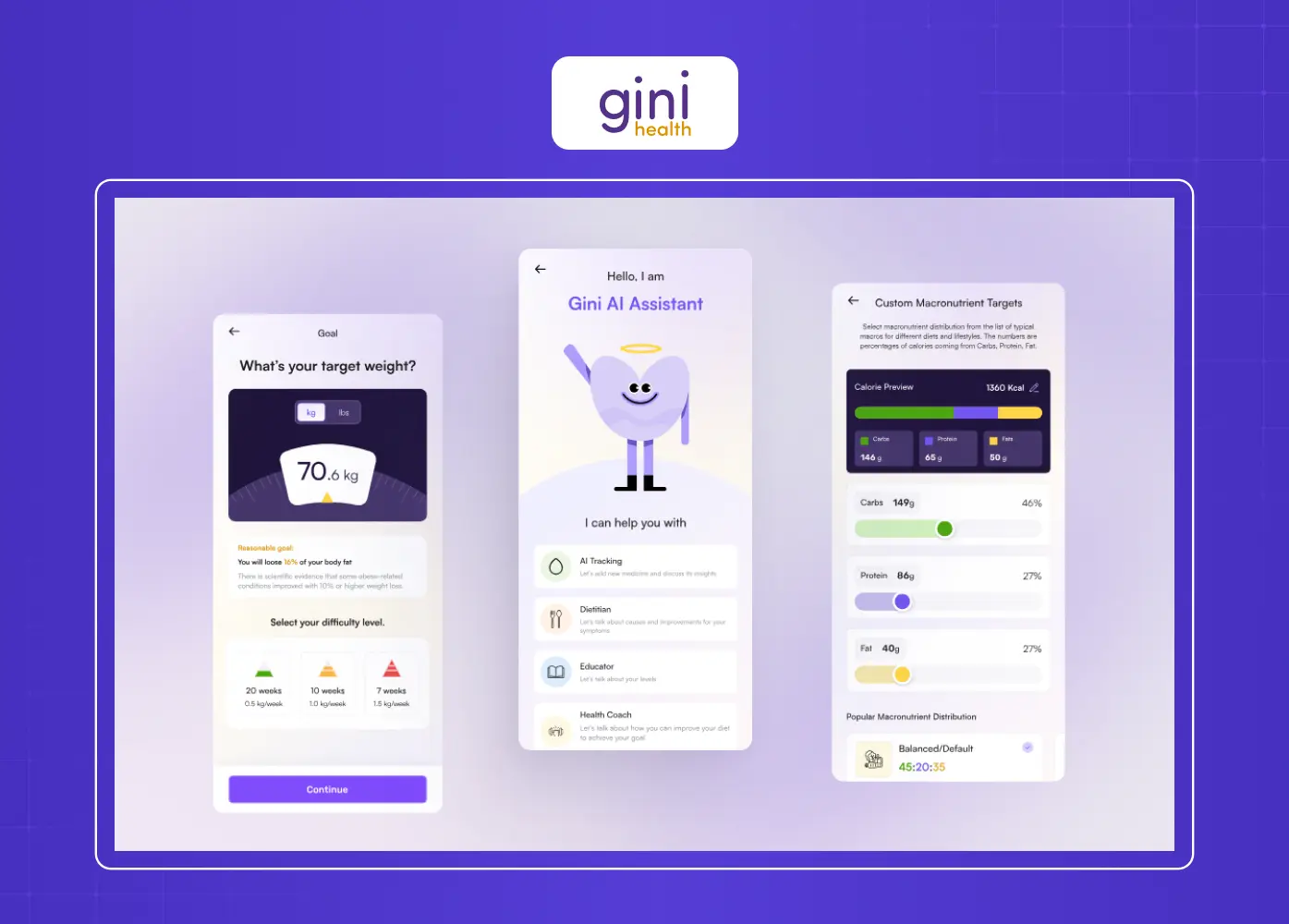
Mobile app screens showing an AI health assistant, weight tracking, and personalized nutrition recommendations.

Gini, a health tracking platform combining DNA insights with AI-powered food logging, depends on a system flexible enough to represent constantly changing, personalized data without breaking visual consistency. Every user's dashboard pulls from a different combination of genetic markers, logged meals, and AI-generated recommendations, so components had to be built around data variability from the start rather than a fixed set of screens. Without clearly documented states for empty data, partial data, and fully personalized views, the interface would have needed constant one-off fixes as new data types were added. Defining those states upfront meant the design system could absorb new personalization features without every addition becoming a redesign. 

The common thread across all of these, ours included, is that none were built by bolting AI onto an existing system after the fact. The structure and documentation came first, and the AI-driven features had somewhere solid to sit.

How We Approach Building One

We treat this as a sequence, not a single project.

  1. Audit before you build. Look at your existing components, tokens, and documentation honestly. Most teams find gaps here before they find anything AI-related.

  2. Fix naming and structure first. Get Figma, code, and documentation speaking the same language. This step alone solves most of the confusion AI tools run into.

  3. Document the why, not just the what. Add usage guidance, states, and constraints, not just visual specs.

  4. Expose it somewhere accessible. Whether that is an MCP server, a documented API, or simply a well-organized, exportable component library.

  5. Test with real prompts. Ask an AI tool to build something using your system and see where it guesses instead of following your structure. Those gaps tell you exactly what to fix next. This is also where what people now call vibe coding, describing a UI in plain language and letting an AI tool generate it, actually holds up. Vibe coding against an undocumented system produces something that looks plausible and drifts from your brand. Against a well-documented one, it produces something close to production-ready. 

  6. Expand gradually. Start with one component or one token group. Progress compounds faster than a full rebuild.

Is Your Design System AI-Ready? A Quick Audit

Run through these ten questions honestly. Most teams find more gaps than they expect.

  1. Is every component named the same way in Figma, code, and documentation?

  2. Are all states, hover, disabled, error, loading, documented somewhere a tool can read?

  3. Do your design tokens match your implementation exactly?

  4. Is there a written explanation of when to use a component, not just what it looks like?

  5. Can an AI tool access your system without someone manually exporting files first?

  6. Would a new team member understand a component's purpose from documentation alone?

  7. Are accessibility requirements documented per component, not just as a general policy?

  8. Is there a single source of truth, or do Figma and code sometimes disagree?

  9. Have you tested your system with an actual AI prompt and reviewed the output?

  10. Is someone responsible for keeping this documentation current as the system evolves?

7 to 10 yes: your system is close to AI-ready. 

4 to 6: the foundations are there, but expect an AI tool to guess often. 

0 to 3: start with naming and documented states before anything else.

Best AI Design Systems and Tools Worth Exploring

If you are researching the best AI design systems or the best AI web design tools to evaluate, a few categories are worth knowing:

  • Documentation and token platforms that expose your system through structured APIs or MCP servers, useful for teams wanting AI tools to query components directly.

  • Figma-native AI features, which are improving fast and increasingly relevant if your team already lives in Figma.

  • Code-generation assistants like Cursor or Claude, part of a wider set of AI tools that save designers hours, which become dramatically more reliable once pointed at a well-documented system instead of guessing from scratch.

  • Governance and review tooling, similar to the restrictions GitHub's Primer team put in place, which matters as much as the generation tools once AI is actually contributing to your system.

There is no single "best" tool here. The system underneath matters more than which AI product sits on top of it.

Conclusion

  • This is not a separate category from good design systems, it is what good design systems look like once AI-driven design becomes part of the workflow.

  • The foundations of solid SaaS UX that make a system easier for your team, clear naming, documented states, consistent tokens, are the exact same foundations that make it usable by AI.

  • Real products we have built, from Camb.ai to Gini, show this works best when the system is designed with that structure from the start, not patched on later.

  • Start small: fix one component, document one token group, and test it against an actual AI prompt before expanding further.

  • The goal has not changed. Design systems were always about building at scale without losing quality. AI just raised the stakes on getting the structure right.


AI tools are now reading your components, tokens, and documentation, not just your team. We break down what makes a design system genuinely AI-ready, with real examples from IBM, Shopify, GitHub, and our own work at Groto.

What makes a design system actually ready for AI tools, explained clearly.

Illustration of AI, design assets, and digital tools connected around a laptop, representing AI-powered design systems and workflows.

TL;DR

  • AI design systems are design systems structured so AI tools can read, understand, and build with them, not just style guides that humans browse.

  • The shift is about machine-readable metadata: clear tokens, documented components, and consistent naming that an AI agent can actually parse.

  • We have seen this play out first-hand across AI-heavy products we have designed, including Camb.ai, Pathways, LearnSphere, and Gini.

  • Getting there does not require rebuilding everything. It starts with fixing your foundations: naming, tokens, and documentation.

  • Figma's AI features and MCP-based workflows are making this more accessible, but the underlying discipline is still good design system practice.

  • We have added 6 FAQs at the end to cover the questions we get asked most often on this topic.

What Are AI Design Systems

A design system used to be built for one audience: your design and dev team.It lived in Figma, maybe a Storybook instance, and a set of Notion pages nobody read end to end.

That audience has quietly doubled. AI is transforming how UI gets built: tools like Cursor, Claude, and Figma's own AI features are now reading your components, tokens, and documentation to generate UI on your behalf. When we talk about a design system for AI, we mean the same foundational assets your team already uses, tokens, components, and guidelines, but structured clearly enough that a machine can interpret them without guessing.

That "without guessing" part matters more than it sounds. Most AI tools work through pattern matching, and gaps in your system get filled with assumptions, not questions. A few things follow from that:

  • If your button component has three variants but only two are documented, the AI will not ask for clarification. It will invent the third one, and it usually will not match your brand.

  • If a spacing rule exists only in a designer's head and not in the file, the AI has no way to know it.

  • If naming is inconsistent between Figma and code, the AI has to guess which one is correct, and it often guesses wrong.

This is the practical difference we care about at Groto: a system built only for humans tolerates ambiguity because people can ask each other. A system meant to work with AI cannot afford that same ambiguity, because the AI has nowhere to ask.

The AI onboarding playbook top teams use to boost activation.

Reduce first-session confusion, speed up time-to-value, and build user trust, built from real onboarding audits of AI products.

No Spam. Free Lifetime

Why This Matters for Design Teams Right Now

As AI reshapes everyday UX practices, we are seeing three things happen at once across the products we design.

  • More clients are building AI-native products themselves, integrating AI into their UX across dubbing platforms, hiring assistants, and health trackers where the interface constantly adapts to model output, not just static content.

  • Teams are using AI coding assistants daily. The design system is quietly becoming the instruction manual those assistants read from, whether anyone planned for that or not.

  • The gap between "looks right" and "is actually correct" is widening. AI-generated UI can look plausible while missing spacing, states, or accessibility details entirely, and those gaps are easy to miss in a quick review.

  • Review cycles are getting longer, not shorter. When AI-generated components almost match the system, teams spend more time catching small inconsistencies than they would building it correctly the first time.

Agents don't just miss detail, they sometimes invent it. If a pattern isn't documented, some AI tools will still produce a plausible-looking variant instead of flagging the gap. Even design system veterans like Dan Mall have pointed out that AI still can't judge what actually looks right versus what merely looks plausible.

Opening a system up to AI tools also opens it up more broadly. An MCP server or exportable API that exposes your tokens and components to an AI assistant can expose them to more than you intended if access isn't scoped carefully.

None of this replaces design judgment. AI can produce a variant fast. It still takes a person to decide if that variant is the right one for your product.

None of this means your design system needs an overhaul. It means the same hygiene that has always made systems good, clear naming, documented states, consistent tokens, now has a second beneficiary. Your team gets a system that is easier to use. The AI tools your team relies on get a system they can actually parse.

What an AI-Ready Design System Actually Gets You

  • Faster, more reliable AI-generated UI. Once tokens and states are documented clearly, an AI tool spends less time guessing and more time producing high-fidelity UI close to what you'd have built by hand.

  • Consistency across roles and brands. LearnSphere's three different user roles, admins, teachers, and students, run on one documented system instead of three separate design languages.

  • Fewer review cycles. Catching drift after an AI tool guesses wrong costs more time than building the underlying structure once.

  • Prompt-based generation that actually holds up. Vibe coding only produces something usable when there's a system underneath constraining it, not just a blank canvas.

  • A system that scales past your own team. The same clarity that helps an AI tool also helps new hires, contractors, and outside teams pick up the system faster.

What Makes a Design System AI-Ready

Diagram outlining the key characteristics of an AI-ready design system, including consistent naming, metadata, accessibility, and documentation.

Beyond the core design principles every system rests on, a handful of things separate a system that works well with AI tools from one that quietly confuses them.

Clear, consistent naming

Every token, component, and variant should be named the same way everywhere, in Figma, in code, and in documentation. If your "primary button" in Figma is called something different in your codebase, an AI tool has no reliable way to connect the two.

Documented states and variants

Hover, disabled, error, loading. If a state exists but is not documented, most AI tools will not know it exists either.

Rich, structured metadata

This is the piece most teams skip. Metadata explains not just what a component looks like, but why it behaves the way it does, when to use it, and when not to. That context is what turns a component library into something closer to machine-readable design systems.

Alignment across layers

Design tokens should match implementation. If your spacing scale in Figma does not match your CSS variables, that mismatch shows up in AI-generated code too.

Accessible entry points

Whether it is an MCP server, a well-organized API, or simply clean, exportable documentation, AI tools need a door in. Buried PDFs and screenshots do not count.

Where AI-Ready Systems Fall Short (And How to Manage It)

None of this is automatic, and treating it as a solved problem creates its own risks.

  • AI tools sometimes invent variants that don't exist. If a pattern isn't documented, some tools will still produce a plausible-looking answer instead of flagging the gap. The fix is the same one that runs through this whole piece: document states explicitly, including the ones you think are obvious.

  • Accessibility and edge-case states are the easiest thing to miss. An AI tool trained mostly on visual patterns can generate something that looks right while missing focus states, screen reader labels, or keyboard navigation entirely. Review AI-generated components against your accessibility checklist the same way you would a junior designer's first pass.

  • Over-reliance can quietly erode design judgment. Design system veterans like Dan Mall have pointed out that AI still can't judge what's meaningful to a human audience versus what just looks plausible. Treat AI output as a fast first draft, not a finished decision.

  • Exposing your system to AI tools can expose more than intended. An MCP server or API that opens your components and tokens to an AI assistant can also open proprietary naming conventions, internal-only components, or unreleased brand work if access isn't scoped carefully. Set clear boundaries on what the server exposes before turning it on broadly.

Building AI-Ready Systems in Figma

A lot of the recent momentum here is happening inside Figma itself. Figma's Dev Mode and its growing set of AI features are pushing teams to think about design systems in Figma differently, less as a static file, more as a structured source of truth that plugins and AI agents can query directly.

If you are exploring how to create a design system in Figma with AI, the starting point is usually the same regardless of tool:

  • Clean up components and variants first. Throwing AI at a messy file to "fix" it tends to produce inconsistent results, because there is nothing structured for the AI to learn from.

  • Name things the way you want them read. Figma layer names often end up as the labels AI tools use when generating or describing components, so vague names create vague output.

  • Use Dev Mode as documentation, not just handoff. Annotations and specs left there are increasingly what AI plugins reference directly.

  • Treat AI features as an accelerator, not a fix. They speed up work on a system that is already organized. They do not organize a messy one for you.

  • Know what Figma's MCP server actually does. It lets tools like Cursor and Claude query your Figma file directly, pulling components, variables, and structure instead of just a flat image. It only helps if the file underneath is organized, but it's the connective layer worth knowing about if you're evaluating AI-assisted workflows.

Figma's push to let teams make design system integration part of their standard workflow, rather than a bolt-on plugin, is a good signal for where this is heading. The tools are catching up to something design systems teams have known for years: structure is what makes reuse possible, for people and now for AI.

Real Examples of AI-Ready Systems in Action

This is not just a Groto idea. A few well-known design systems have already made this shift publicly, and their approaches point at different parts of the same problem.

IBM's Carbon Design System

Screenshot of IBM's Carbon Design System documentation highlighting AI integration and reusable design components.

IBM built a dedicated MCP server that lets AI tools query Carbon's components, tokens, and icons directly, so generated code follows IBM's actual spec instead of a guess at it. Carbon also introduced a separate set of tokens called Carbon for AI, used specifically to give AI-generated content its own distinct, transparent visual identity within a product, so users can tell what came from a model and what did not.

Shopify's Polaris

Screenshot of Shopify's Polaris Design System showcasing UI components, interaction states, colors, and design patterns.

Shopify’s Polaris ships a first-party dev MCP server that exposes Polaris tooling directly to AI coding assistants like Cursor and Claude, which is why AI-generated admin UI built on Shopify tends to hold up structurally instead of drifting from the system.

GitHub's Primer

Screenshot of GitHub's Primer Design System featuring reusable UI components and brand assets for product development.

GitHub’s Primer team took a governance-first approach. Rather than letting AI agents touch production code freely, they restricted agents to only opening issues, never merging changes, keeping a human in the loop for every agentic contribution to the system.

Primer's approach also points at a useful distinction that's becoming clearer across the industry: there's a difference between a design system an AI can read, and one an AI can contribute to. Most of what we've covered so far, tokens, documented states, structured metadata, makes a system readable. Primer's issues-only restriction is what a system looks like once it starts allowing agents to contribute, a preview of how teams use agentic AI in production, with a human still approving every change before it ships. Most teams are better served starting with the first tier and treating the second as something to grow into.

Indeed's design systems team ran one of the more rigorous tests of this question. After converting 77 components into structured JSON and benchmarking it against long-form Markdown documentation across more than 1,000 prompts, they found JSON delivered higher accuracy at roughly 80% fewer tokens per query, and the resulting pipeline has powered thousands of AI-generated prototypes since.

Meta's Astryx, released as an open-source React design system in mid-2026, takes a similar bet further. Alongside its component library, it ships a CLI that returns a self-describing JSON manifest of every command and component, so an AI agent can query the system directly instead of scraping documentation.

We do not think about this only in the abstract either. Several products we have designed at Groto only work because the underlying system was built to handle AI-driven complexity from day one.

Camb.ai

Screenshot of the Camb.ai dashboard illustrating a UX redesign focused on improving feature discoverability and user engagement.

Camb.ai, an AI dubbing platform supporting real-time translation across 140-plus languages, needed a UI that could stay consistent even as content and language variants shifted constantly. A tightly defined component system was what let the interface stay usable across that variability.

PathwaysX

Homepage of the PathwaysX website showcasing a modern, conversion-focused design for a talent infrastructure platform.

PathwaysX, a B2B hiring platform powered by personality-based AI assessments, relies on a design system where states and data-driven components had to be documented clearly enough for a fast-moving product team to build on without constant back and forth.

LearnSphere 

Student profile dashboard displaying academic records, navigation, and performance information in a learning management system.

Learnsphere, an edtech platform, needed one system to serve three very different user roles, admins, teachers, and students, each seeing AI-personalized content. A shared, well-documented component library made that role-based flexibility possible without three separate design languages.

Gini

Mobile app screens showing an AI health assistant, weight tracking, and personalized nutrition recommendations.

Gini, a health tracking platform combining DNA insights with AI-powered food logging, depends on a system flexible enough to represent constantly changing, personalized data without breaking visual consistency. Every user's dashboard pulls from a different combination of genetic markers, logged meals, and AI-generated recommendations, so components had to be built around data variability from the start rather than a fixed set of screens. Without clearly documented states for empty data, partial data, and fully personalized views, the interface would have needed constant one-off fixes as new data types were added. Defining those states upfront meant the design system could absorb new personalization features without every addition becoming a redesign. 

The common thread across all of these, ours included, is that none were built by bolting AI onto an existing system after the fact. The structure and documentation came first, and the AI-driven features had somewhere solid to sit.

How We Approach Building One

We treat this as a sequence, not a single project.

  1. Audit before you build. Look at your existing components, tokens, and documentation honestly. Most teams find gaps here before they find anything AI-related.

  2. Fix naming and structure first. Get Figma, code, and documentation speaking the same language. This step alone solves most of the confusion AI tools run into.

  3. Document the why, not just the what. Add usage guidance, states, and constraints, not just visual specs.

  4. Expose it somewhere accessible. Whether that is an MCP server, a documented API, or simply a well-organized, exportable component library.

  5. Test with real prompts. Ask an AI tool to build something using your system and see where it guesses instead of following your structure. Those gaps tell you exactly what to fix next. This is also where what people now call vibe coding, describing a UI in plain language and letting an AI tool generate it, actually holds up. Vibe coding against an undocumented system produces something that looks plausible and drifts from your brand. Against a well-documented one, it produces something close to production-ready. 

  6. Expand gradually. Start with one component or one token group. Progress compounds faster than a full rebuild.

Is Your Design System AI-Ready? A Quick Audit

Run through these ten questions honestly. Most teams find more gaps than they expect.

  1. Is every component named the same way in Figma, code, and documentation?

  2. Are all states, hover, disabled, error, loading, documented somewhere a tool can read?

  3. Do your design tokens match your implementation exactly?

  4. Is there a written explanation of when to use a component, not just what it looks like?

  5. Can an AI tool access your system without someone manually exporting files first?

  6. Would a new team member understand a component's purpose from documentation alone?

  7. Are accessibility requirements documented per component, not just as a general policy?

  8. Is there a single source of truth, or do Figma and code sometimes disagree?

  9. Have you tested your system with an actual AI prompt and reviewed the output?

  10. Is someone responsible for keeping this documentation current as the system evolves?

7 to 10 yes: your system is close to AI-ready. 

4 to 6: the foundations are there, but expect an AI tool to guess often. 

0 to 3: start with naming and documented states before anything else.

Best AI Design Systems and Tools Worth Exploring

If you are researching the best AI design systems or the best AI web design tools to evaluate, a few categories are worth knowing:

  • Documentation and token platforms that expose your system through structured APIs or MCP servers, useful for teams wanting AI tools to query components directly.

  • Figma-native AI features, which are improving fast and increasingly relevant if your team already lives in Figma.

  • Code-generation assistants like Cursor or Claude, part of a wider set of AI tools that save designers hours, which become dramatically more reliable once pointed at a well-documented system instead of guessing from scratch.

  • Governance and review tooling, similar to the restrictions GitHub's Primer team put in place, which matters as much as the generation tools once AI is actually contributing to your system.

There is no single "best" tool here. The system underneath matters more than which AI product sits on top of it.

Conclusion

  • This is not a separate category from good design systems, it is what good design systems look like once AI-driven design becomes part of the workflow.

  • The foundations of solid SaaS UX that make a system easier for your team, clear naming, documented states, consistent tokens, are the exact same foundations that make it usable by AI.

  • Real products we have built, from Camb.ai to Gini, show this works best when the system is designed with that structure from the start, not patched on later.

  • Start small: fix one component, document one token group, and test it against an actual AI prompt before expanding further.

  • The goal has not changed. Design systems were always about building at scale without losing quality. AI just raised the stakes on getting the structure right.

Have a project in mind?

Let’s talk through your idea and see what makes sense.

Harpreet Singh

Founder at Groto

Have a project in mind?

Let’s talk through your idea and see what makes sense.

Harpreet Singh

Founder at Groto

FAQ

Everything you were going to ask (and a few things you didn’t know to)

What is a machine-readable design system?

A machine-readable design system is one where tokens, components, and states are documented in a format a tool can parse directly, like JSON or a structured markdown file, rather than only in prose or screenshots. The test isn't whether documentation exists, but whether an AI agent could load it and act on it without a human translating first.
What is the best AI for system design?

For design systems specifically, the strongest results come from pairing a well-documented component library with an AI coding assistant that can read structured metadata, rather than relying on a single all-in-one tool. The AI is only as good as the system it is reading from.

What is an MCP server for a design system?

An MCP server is a connection point that lets AI tools like Claude or Cursor query your design system directly, pulling live components, tokens, and structure instead of working from a static export or a screenshot. Figma, Shopify, and IBM all run their own, and teams building custom systems are increasingly setting up smaller versions to expose just their component library.

Can I build my own AI software?

Yes, though for most design teams the more practical path is connecting existing AI tools like Claude or Cursor to your design system through structured documentation or an MCP server, rather than building custom AI software from scratch.

Which AI tools are best for beginners?

If you are new to this, start with Figma's built-in AI features since they sit inside a tool you likely already know. From there, simple prompt-based tools like ChatGPT or Claude are a gentle way to get comfortable before introducing code-focused assistants.

How do I make an existing design system AI-ready without rebuilding it?

You don't need a rebuild. The fastest returns come from fixing naming and documenting states first, since those are what AI tools stumble on most often. Layer in structured metadata and an accessible entry point once the foundation holds, and expand component by component rather than all at once.

What is a machine-readable design system?

A machine-readable design system is one where tokens, components, and states are documented in a format a tool can parse directly, like JSON or a structured markdown file, rather than only in prose or screenshots. The test isn't whether documentation exists, but whether an AI agent could load it and act on it without a human translating first.

What is the best AI for system design?

For design systems specifically, the strongest results come from pairing a well-documented component library with an AI coding assistant that can read structured metadata, rather than relying on a single all-in-one tool. The AI is only as good as the system it is reading from.

What is an MCP server for a design system?

An MCP server is a connection point that lets AI tools like Claude or Cursor query your design system directly, pulling live components, tokens, and structure instead of working from a static export or a screenshot. Figma, Shopify, and IBM all run their own, and teams building custom systems are increasingly setting up smaller versions to expose just their component library.

Can I build my own AI software?

Yes, though for most design teams the more practical path is connecting existing AI tools like Claude or Cursor to your design system through structured documentation or an MCP server, rather than building custom AI software from scratch.

Which AI tools are best for beginners?

If you are new to this, start with Figma's built-in AI features since they sit inside a tool you likely already know. From there, simple prompt-based tools like ChatGPT or Claude are a gentle way to get comfortable before introducing code-focused assistants.

How do I make an existing design system AI-ready without rebuilding it?

You don't need a rebuild. The fastest returns come from fixing naming and documenting states first, since those are what AI tools stumble on most often. Layer in structured metadata and an accessible entry point once the foundation holds, and expand component by component rather than all at once.

More Articles

Extreme close-up black and white photograph of a human eye

Let’s bring your vision to life

Tell us what's on your mind? We'll hit you back in 24 hours. No fluff, no delays - just a solid vision to bring your idea to life.

Profile portrait of a man in a white shirt against a light background

Harpreet Singh

Founder and Creative Director

Get in Touch

Extreme close-up black and white photograph of a human eye

Let’s bring your vision to life

Tell us what's on your mind? We'll hit you back in 24 hours. No fluff, no delays - just a solid vision to bring your idea to life.

Profile portrait of a man in a white shirt against a light background

Harpreet Singh

Founder and Creative Director

Get in Touch

Extreme close-up black and white photograph of a human eye

Let’s bring your vision to life

Tell us what's on your mind? We'll hit you back in 24 hours. No fluff, no delays - just a solid vision to bring your idea to life.

Profile portrait of a man in a white shirt against a light background

Harpreet Singh

Founder and Creative Director

Get in Touch