What Is Screendesign? A Complete Guide to Designing Better UI Screens

What Is Screendesign? A Complete Guide to Designing Better UI Screens

Most teams treat screen design as the last step. It's actually the whole game. Here's what it is, how it works, and how to get it right.

What Is Screendesign? A Complete Guide to Designing Better UI Screens

What Is Screendesign? A Complete Guide to Designing Better UI Screens

Most teams treat screen design as the last step. It's actually the whole game. Here's what it is, how it works, and how to get it right.

Your users aren't reading your screens — they're glancing at them for half a second and making a call. Screen design is what controls that call. This is the complete guide to getting it right, from concept to high-fidelity.

Screen design isn't decoration. It's the difference between a product that converts and one that doesn't.
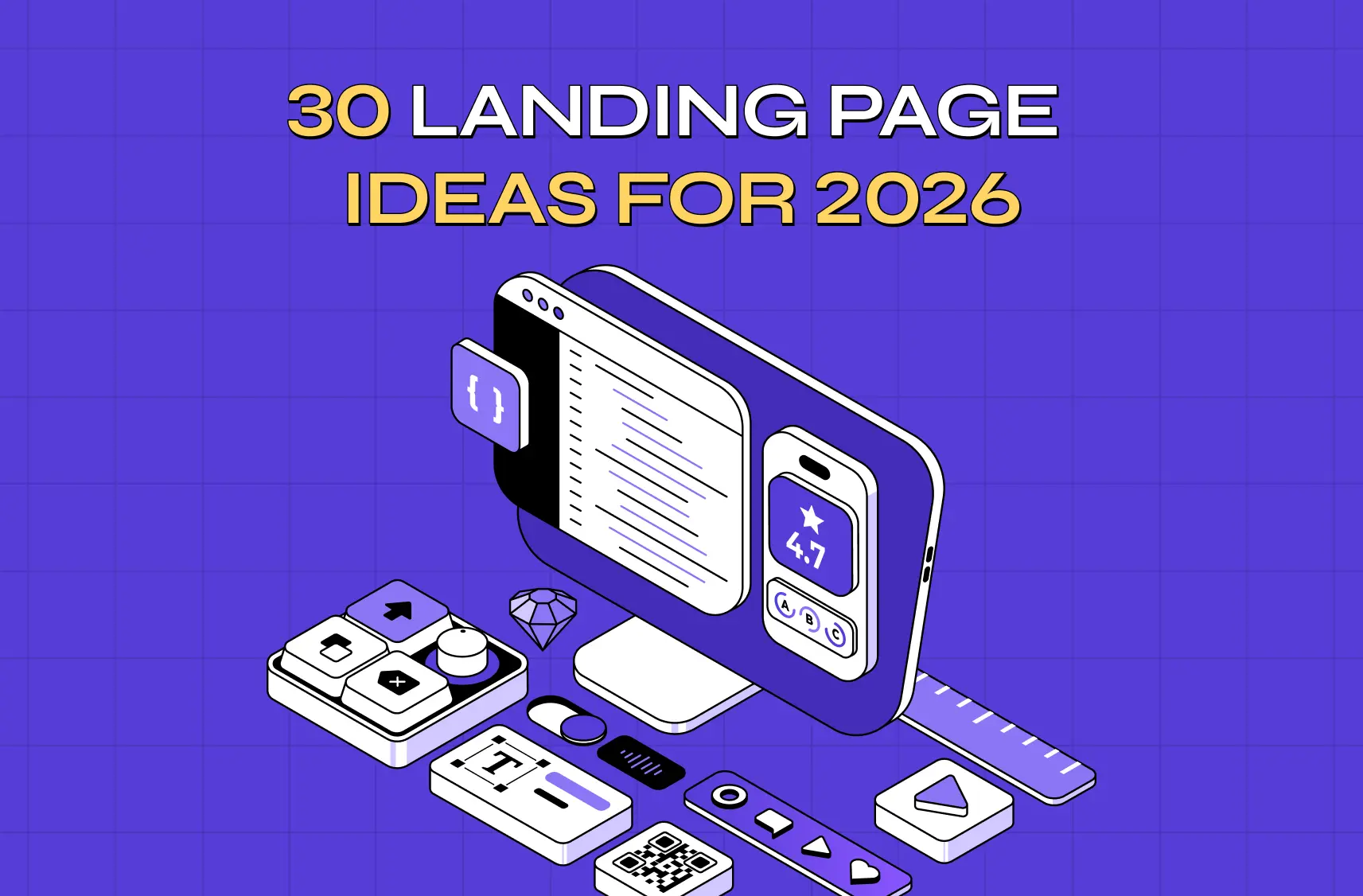
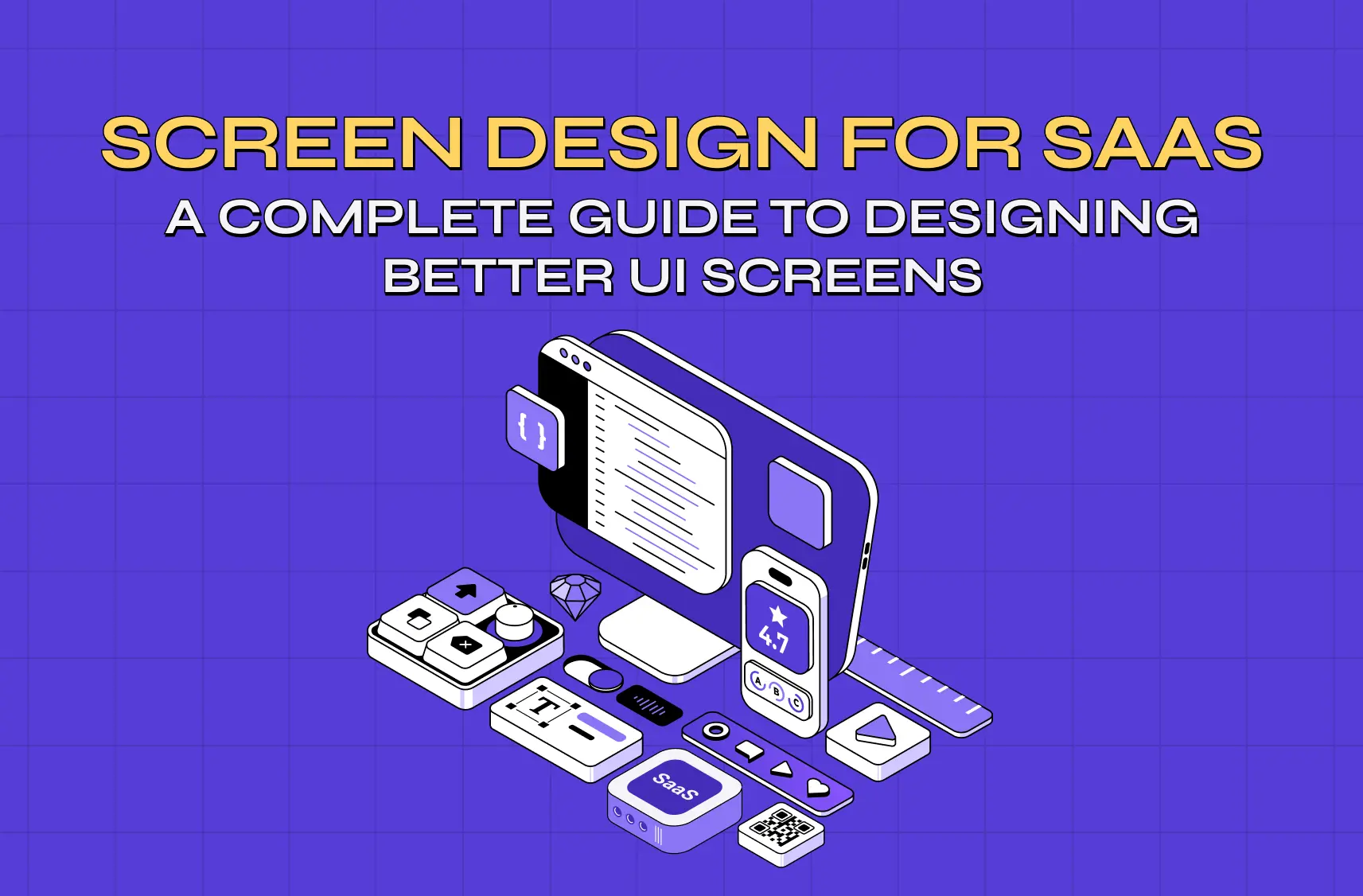
Isometric SaaS-themed illustration featuring floating UI components, mobile screens, controls, and interface elements arranged in a futuristic composition.

Screen after screen, your users are making split-second judgments about your product. Whether it's a sign-up form, a dashboard they open every morning, or an error state they hit unexpectedly — every screen either builds trust or quietly chips away at it. That's the job of screendesign, and it's one most product teams underestimate until the metrics start telling them otherwise.

In this guide, we walk through what screen design actually means, the principles that make it work, the process behind it, and the tools teams use to get it right. If you're building a SaaS product, a mobile app, or any digital interface, this is the foundation that has to be solid before anything else.

TL;DR

  • Screendesign is the discipline of planning and composing everything a user sees and interacts with on a screen — layout, color, type, navigation, and interaction, all working together.

  • Good screen design starts before any tool is opened: define what the system is to its users before designing how it looks.

  • Users scan screens, they don't read them — structure every screen to support scanning, not careful reading.

  • Core components include layout and hierarchy, scannability, typography, color, navigation patterns, visuals, and medium-matching.

  • In SaaS, every screen has one job — and most failing screens are trying to do three.

  • Screen design directly affects conversion, activation, retention, and how credible a product appears to buyers and investors.

  • The process runs: define purpose → map information architecture → wireframe → build a style guide → high-fidelity design → test with real users.

  • Figma is the dominant design tool; Screenlane and Mobbin are the leading inspiration and reference platforms.

  • Most screen design mistakes point to skipped process steps, not bad visual taste.

What Is Screendesign?

Screendesign is the practice of deciding what goes on a screen, where it goes, and why — across websites, mobile apps, SaaS dashboards, and anything else where a person interacts with a digital interface through a display.

It's not just about making things look good. Good screen design sits at the intersection of visual aesthetics, information architecture, interaction logic, and user psychology — for the full picture of what UI/UX design actually involves, screen design is the output layer where all of those disciplines converge. At Groto, we think of it as the practice of making every screen do its job clearly — guiding attention, communicating hierarchy, and reducing friction at every step.

One distinction worth drawing early: screen design is not the same as front-end development. Design defines what appears and why it's arranged that way. Development defines how it gets built. Both matter, but conflating them is one of the most common reasons screen-level decisions get made too late in the process.

The UX/UI checklist top SaaS teams actually use

15 essential checks covering onboarding, conversions, and retention. Spot quick wins and fix friction before it costs you signups.

No Spam. Free Lifetime

The UX/UI checklist top SaaS teams actually use

15 essential checks covering onboarding, conversions, and retention. Spot quick wins and fix friction before it costs you signups.

No Spam. Free Lifetime

Start with Concept, Not with Screens

This is the principle most teams skip, and it's the one that causes the most rework downstream.

Before any screen is sketched, a team needs a clear answer to a more fundamental question: what is this system to its users? Not how it looks — what it is. What mental model does it create? What metaphor does it operate on? How does it fit into the user's existing world?

Designers who start directly in a design tool — placing buttons, picking colors, drawing navigation bars — are designing how the system presents itself before they've defined what the system is. Those decisions often have to be undone. Time spent on interaction details without a well-defined underlying conceptual structure is frequently wasted.

The practical implication for any product team: before touching a design tool, align on the product's conceptual model. Document it. Let it constrain the screen design decisions that follow. The visual layer should express the concept — not define it.

What Makes a Good Screen: 3 Properties Every SaaS Screen Must Have
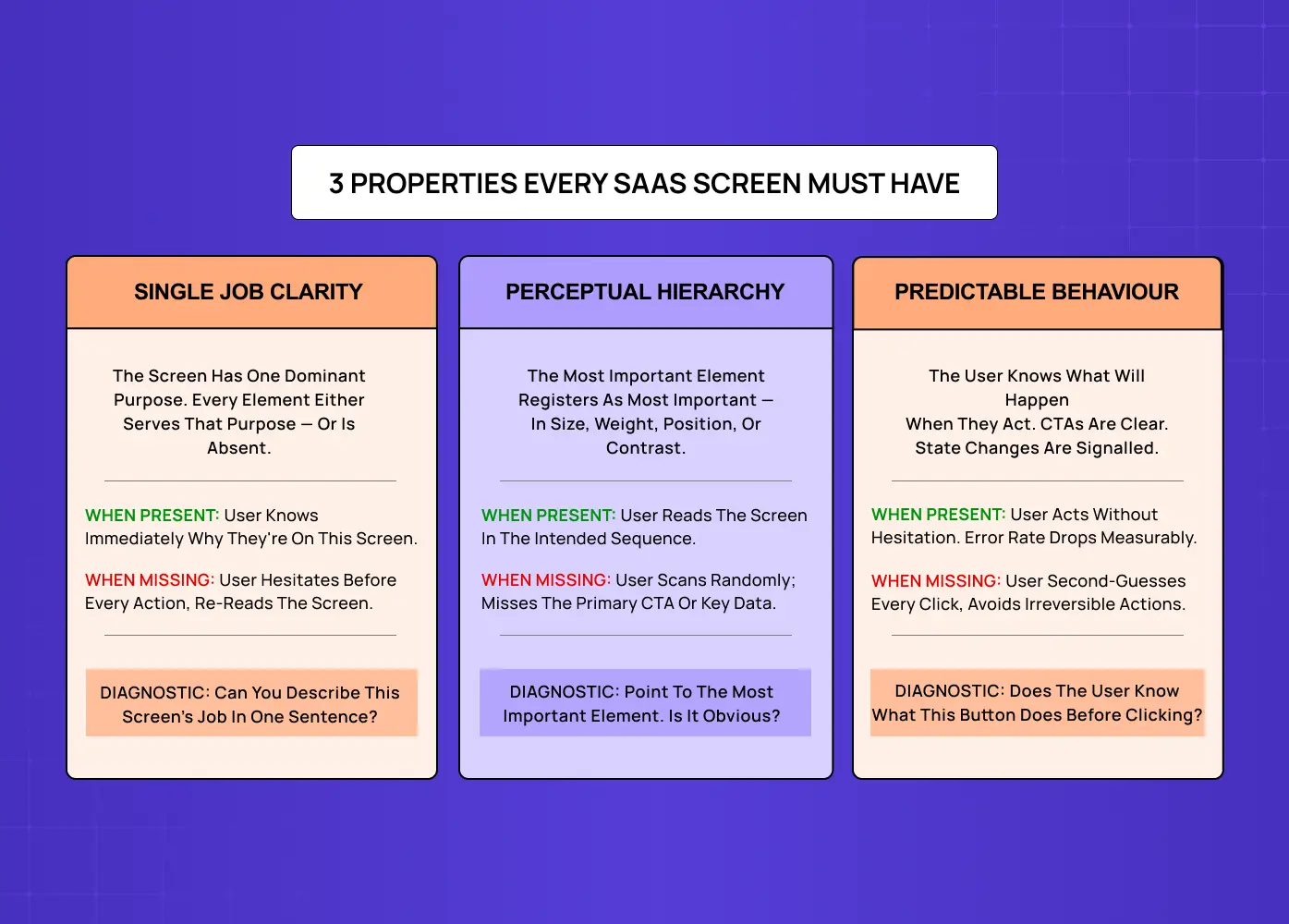
UX framework infographic explaining three essential properties every SaaS screen should have: single job clarity, perceptual hierarchy, and predictable behaviour.

Before diving into components and process, there's a simpler diagnostic worth understanding first. A well-designed screen — especially in a SaaS product — has three properties. When all three are present, the screen feels effortless. When any one is missing, the screen creates friction that compounds across every user session.

01 — Single-Job Clarity

The screen has one dominant purpose. Every element either serves that purpose — or is absent. When this is present, the user knows immediately why they're on this screen. When it's missing, they hesitate before every action and re-read the screen trying to orient themselves.

Diagnostic: Can you describe this screen's job in one sentence? If not, the screen has a problem that no amount of visual polish will fix.

02 — Perceptual Hierarchy

The most important element registers as the most important — in size, weight, position, or contrast — without requiring the user to read the screen to understand its structure. When this is present, users read the screen in the intended sequence. When it's missing, they scan randomly and miss the primary CTA or key data point entirely. The techniques that make this work are covered in depth in the guide on emphasis in design

Diagnostic: Point to the most important element on the screen. Is it immediately obvious to someone seeing it for the first time?

03 — Predictable Behaviour

The user knows what will happen when they act. CTAs are unambiguous. Navigation is consistent. State changes are signalled before they occur. When this is present, users act without hesitation and error rates drop measurably. When it's missing, users second-guess every click and avoid irreversible actions — which in a productivity tool means they avoid doing things the product needs them to do.

Diagnostic: Does the user know what this button does before clicking it?

Core Components of Screen UI Design
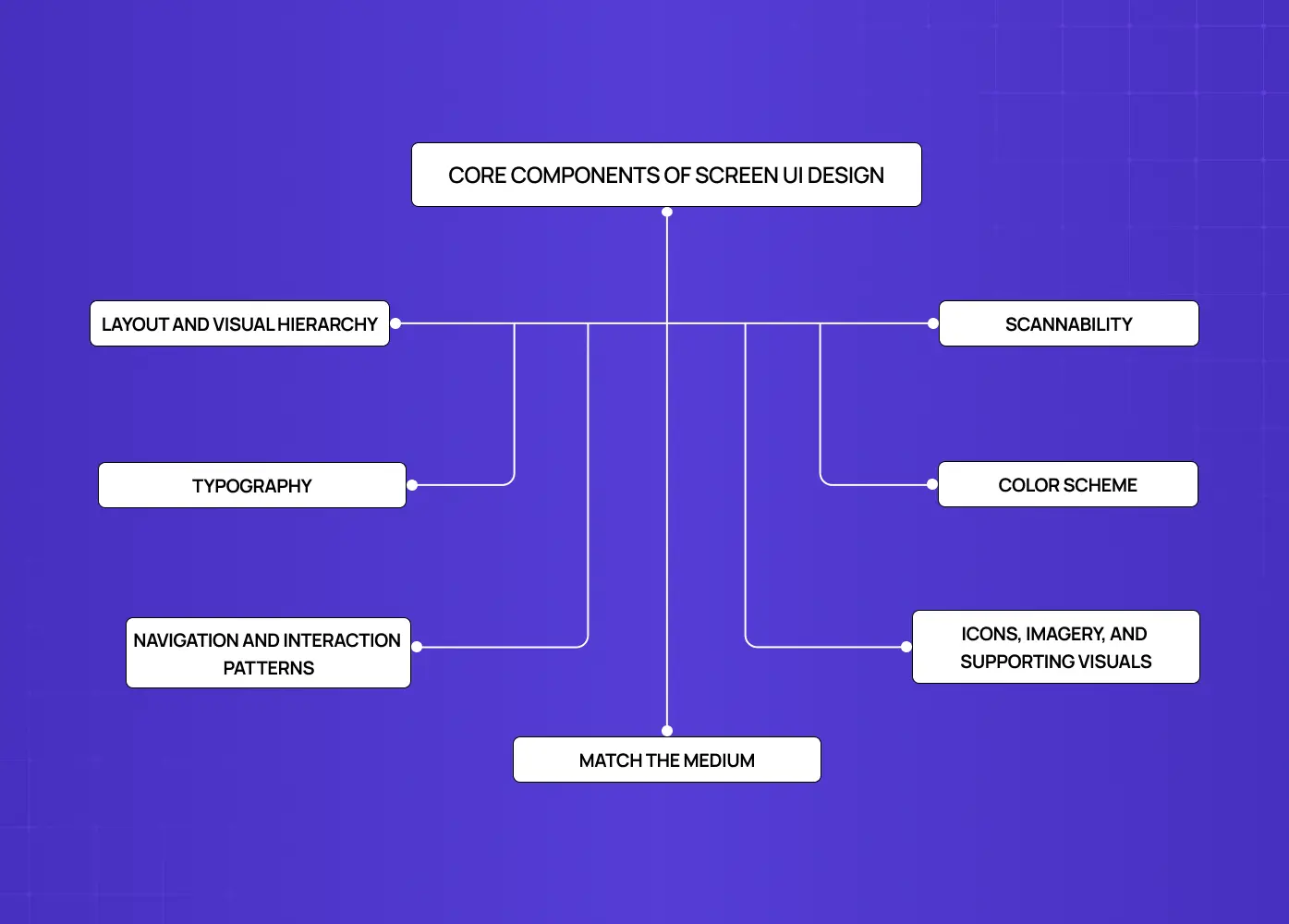
Screen UI design framework diagram highlighting core components such as layout hierarchy, typography, navigation patterns, scannability, color systems, and supporting visuals.

Once the conceptual foundation is clear, screen design works across several overlapping layers simultaneously. Get one layer wrong and it ripples upward through everything above it. These layers are all expressions of the 13 principles of design — contrast, balance,proximity, hierarchy — applied at the screen level. 

Layout and Visual Hierarchy

Layout is the foundation. It determines where every element lives on a screen and how the eye moves through the content. A strong layout creates visual hierarchy — a clear sense of what's most important, what's secondary, and what's contextual detail. The visual design principles that govern this hierarchy are what every screen layout decision draws from. 

  • Grid systems keep elements aligned and proportional across screen sizes — the guide on types of grids and their importance in modern design covers which grid structure fits which screen complexity.

  • Proximity groups related elements and separates unrelated ones.

  • Contrast draws the eye toward the most important action or piece of information.

  • White space gives elements room to breathe, reducing cognitive load without removing content.

  • Focal points ensure users always have a clear answer to "where do I look first?"

Scannability

Users almost never read screens carefully. They scan — quickly moving across the interface looking for anything that matches their goal. This has a direct consequence for how screens should be structured.

  • Break information into headings, bullets, lists, and visual groupings rather than long prose.

  • Keep labels and link text short and immediately recognizable.

  • Display information visually where possible — a chart communicates faster than a paragraph of numbers.

  • Prioritize the most important content for the top and left of the screen, following natural reading patterns.

  • Avoid burying key actions in text or hiding navigation in unconventional locations.

Scannability isn't a visual preference — it's a behavioral reality. Screens that require careful reading create friction; screens that support scanning reduce it.

Typography

Type shapes how readable and trustworthy a screen feels. It's one of the most underestimated levers in screen UI design.

  • Font choice communicates tone — a fintech product has different type requirements than a consumer wellness app.

  • A clear typographic hierarchy (heading → subheading → body → caption) guides users through content without confusion.

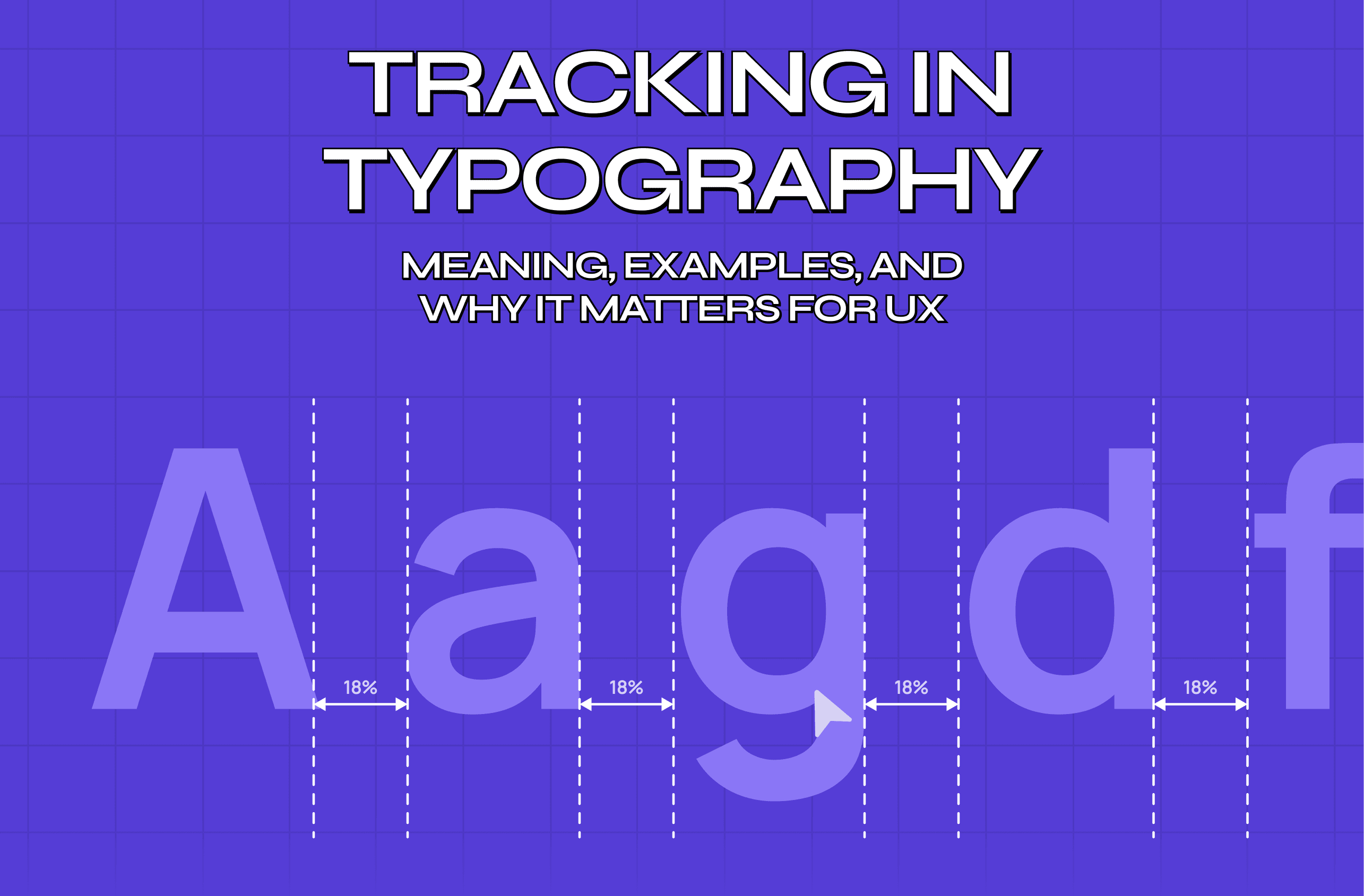
  • Line height and letter spacing affect legibility at scale, especially on mobile — the guide on what tracking does to legibility at scale explains the mechanics behind this and how to calibrate it correctly. 

  • Consistent typographic systems — defined in a style guide — prevent screens from feeling visually fragmented across a product.

Color Scheme

Color does two jobs simultaneously: it communicates meaning, and it establishes identity.

  • A color system defines primary, secondary, and semantic colors (success, warning, error, neutral).

  • Color contrast ratios are a core accessibility requirement — not an optional enhancement.

  • Background and foreground relationships must hold up across different device brightness settings and ambient lighting conditions.

  • Brand colors inform the palette, but functional UX requirements should govern how and where they're applied.

Navigation and Interaction Patterns

How users move between screens matters as much as what's on any individual screen.

  • Navigation placement (top bar, sidebar, bottom nav) should match both platform conventions and the product's structural complexity.

  • Interaction affordances — buttons that look tappable, links that look clickable — reduce user hesitation without requiring explanation.

  • Transitions and micro-interactions communicate state changes and provide feedback that keeps users oriented.

  • Consistent patterns across screens reduce the learning curve for new users and reduce cognitive effort for experienced ones.

Icons, Imagery, and Supporting Visuals

Visual elements support comprehension when used well — and create noise when used carelessly.

  • Icons should be immediately recognizable; if they require explanation, they're not doing their job.

  • Imagery should serve the content, not decorate the page.

  • Illustrations work particularly well for empty states, onboarding screens, and error moments.

  • Every visual element should have a functional reason for being on the screen.

Match the Medium

One of the clearest signs of a poorly considered interface is a screen that doesn't account for the constraints and capabilities of the device it appears on — the guide on mobile-first responsive design best practices covers how to approach this structurally from the start.  A layout built for desktop that simply shrinks for mobile. A visual metaphor that doesn't translate to touch. Subtle colors on a screen that can't render them accurately.

Screen design has to account for:

  • Screen size and resolution across the target device range.

  • Input method — touch, mouse, keyboard, voice — and how it affects what affordances are appropriate.

  • Ambient context — a mobile app used outdoors needs different contrast considerations than a desktop tool used in an office.

  • The rendering limitations of the target medium.

Getting this right isn't a polish step. It's a structural decision that should be made at the beginning of the design process, not retrofitted at the end.

The Screen Job Framework: Every Screen Has One Job
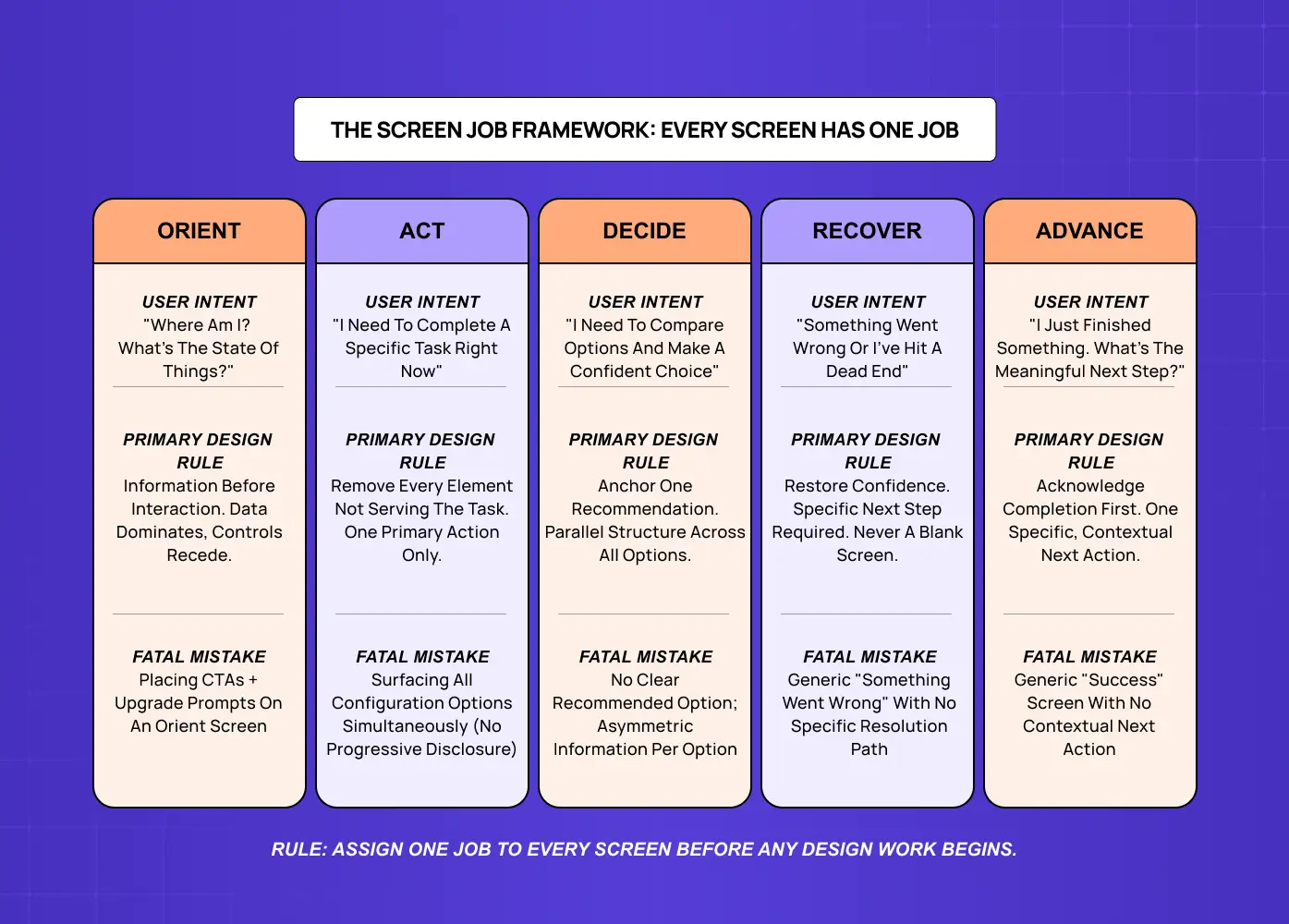
UX framework infographic explaining five screen intent categories — orient, act, decide, recover, and advance — with associated design principles and user goals.

Here's the thing most guides to screen design get wrong. They catalogue components — here are cards, here are navigation bars, here are modals. That's the vocabulary of screen design, not the grammar. The grammar — the rules that determine whether a screen actually works — comes from understanding what job the screen is supposed to do for the user at that exact moment in the product journey.

In SaaS products especially, screen design is not a layout problem. It's a clarity-of-purpose problem. When a dashboard tries to orient new users, surface power features, and drive an upgrade decision simultaneously, it fails at all three — not because it looks bad, but because no single screen can serve three different user intents without fracturing focus.

At Groto, we use the Screen Job Framework before any screen is built or rebuilt. It defines five screen types by user intent — because the most useful way to organize screens isn't by component type or visual style. It's by what the user actually needs to accomplish the moment they arrive.

The 5 Screen Types

01 — ORIENT (Home dashboard, project overview) 

User intent: "Where am I? What's the state of things?" 

Design rule: Information before interaction. Data dominates, controls recede.

Fatal mistake: Placing CTAs and upgrade prompts on an orient screen — they compete with situation awareness and the screen fails at its primary job.

02 — ACT (Forms, editor, config panels) 

User intent: "I need to complete a specific task right now." 

Design rule: Remove every element not directly serving the task. One primary action only.

Fatal mistake: Surfacing all configuration options simultaneously with no progressive disclosure — intimidating the user before they've started.

03 — DECIDE (Pricing, plan comparison, feature selection) 

User intent: "I need to compare options and make a confident choice." 

Design rule: Anchor one recommendation. Maintain parallel structure across all options.

Fatal mistake: No clear recommended option and asymmetric information per option — the user can't make a fair comparison and defaults to paralysis.

04 — RECOVER (Error states, empty states, zero-results views) 

User intent: "Something went wrong or I've hit a dead end." 

Design rule: Restore confidence. Specific next step required. Never a blank screen. 

Fatal mistake: Generic "Something went wrong" with no specific resolution path — leaving the user stuck at the exact moment their confidence is lowest.

05 — ADVANCE (Post-task confirmations, upgrade prompts, feature discovery) 

User intent: "I just finished something. What's the meaningful next step?" 

Design rule: Acknowledge completion first. One specific, contextual next action. 

Fatal mistake: Generic "success" screen with no contextual next action — leaving the highest-converting moment in the user journey completely unused.

The Multi-Job Trap: Why Most SaaS Screens Fail

Comparative infographic contrasting effective SaaS screen architecture with overloaded dashboards that mix onboarding, analytics, and upgrade prompts in one interface.

The most common screen design failure in SaaS isn't poor visual execution. It's a single screen assigned multiple conflicting jobs — and it happens to almost every product team eventually.

Here's how it plays out. A dashboard gets built with a clear job: situation awareness for activated users. Then onboarding gets added. Then an upgrade prompt banner. Then a feature announcement. Each addition seems reasonable in isolation. The cumulative effect is a screen that has completely lost its purpose.

The broken version looks like this:

  • Job 1 (Orient — new users): Onboarding checklist, progress bar, setup prompts.

  • Job 2 (Orient — power users): 30 metrics, activity feeds, filters, export controls.

  • Job 3 (Advance): Upgrade prompt banner, modal trigger, feature lock icons.

Result: New users are overwhelmed. Power users are irritated by onboarding noise they've already completed. Upgrade prompts are ignored because they appear when the user is trying to work, not evaluate plans. All three jobs fail.

The fix isn't removing features. It's separating screens:

  • Screen A (Orient — new user): Onboarding home, shown in the first 7 days. Job: guide to activation.

  • Screen B (Orient — activated user): Main dashboard, shown after activation. Job: situation awareness only.

  • Screen C (Advance): Post-task upgrade prompt, triggered after task completion. Job: contextual conversion.

Each user sees the screen for their stage. Each screen does one job well. Upgrade conversion rises because the prompt appears when the user is confident and receptive — not when they're trying to complete a task.

The Screen Job Audit — 3 Questions

Before designing or redesigning any screen, run through these:

  1. What job was this screen supposed to do? Inferred from the product flow and the user's arrival context.

  2. What jobs is it currently doing? List every element and the intent it serves.

  3. Which jobs belong here — and which need their own screen? Restructure, don't just remove.

The output is a screen with a clear job, a coherent hierarchy, and measurable success criteria — not just a redesigned layout.

Why Screen Design Directly Affects Business Outcomes

Screen design isn't just a design team concern — it's a product and growth concern. Every friction point in a screen costs conversions. Every moment of confusion in an onboarding flow costs retention. Every inconsistent interface pattern costs trust.These outcomes are why digital product design principles treat screen-level decisions as business decisions, not aesthetic ones. 

At Groto, we've seen this pattern repeatedly: teams that treat screen design as decoration pay for it in their metrics later.

The business outcomes most directly shaped by screen-level decisions:

  • Conversion rate — every screen in the acquisition path either removes friction or creates it; the homepage design principles guide covers the highest-stakes screen in that path in detail. 

  • Activation rate — how quickly new users reach their first moment of value is almost entirely a screen design problem.

  • Retention — users stay with products that feel consistent and easy to navigate.

  • Support volume — confusing screens generate support tickets; clear screens reduce them.

  • Perceived credibility — investors, enterprise buyers, and first-time visitors form opinions based on what they see before they experience what a product does.

The Screen Design Process
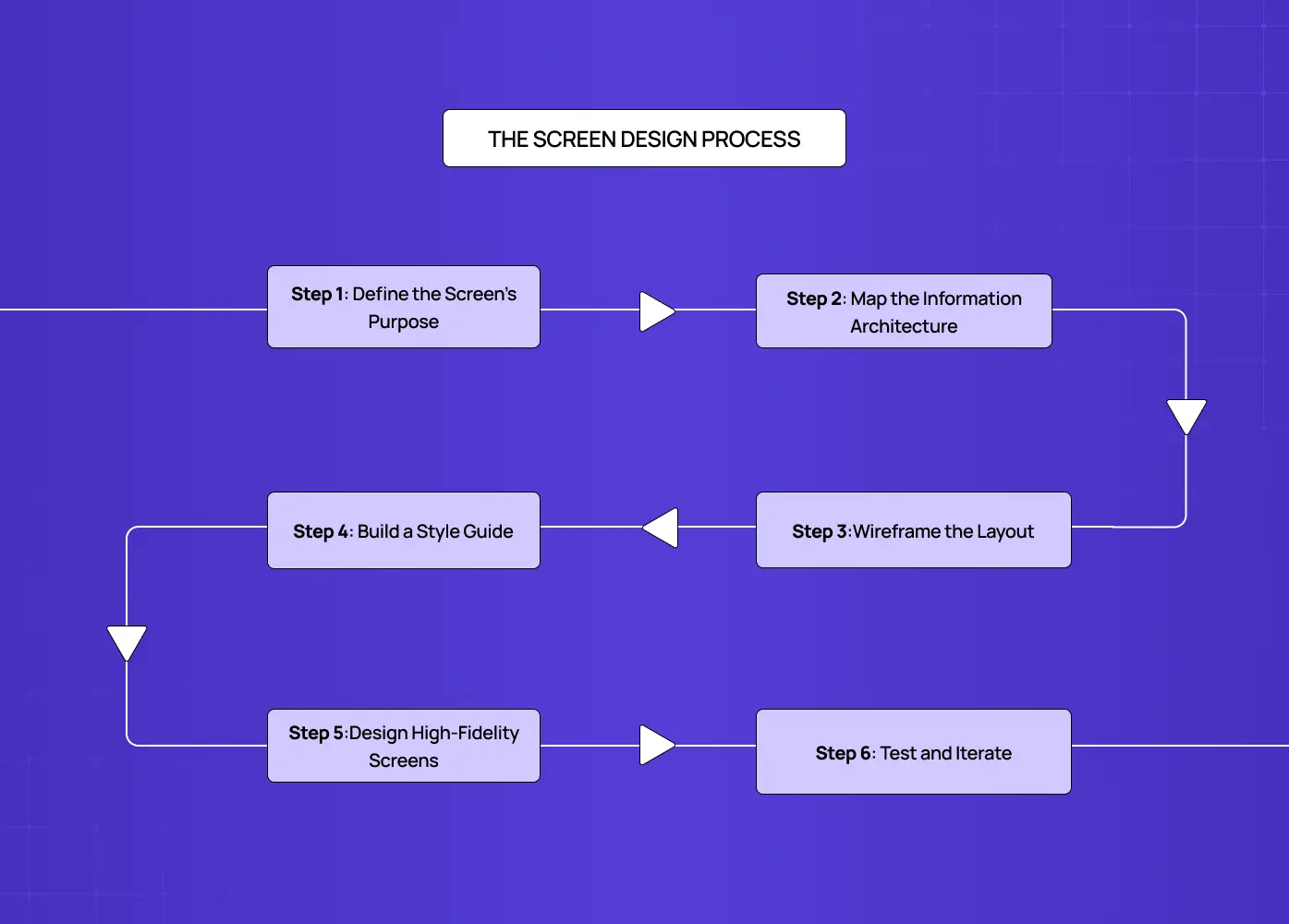
Flowchart illustrating the screen design process from defining purpose and information architecture to wireframing, styling, high-fidelity design, and usability testing.

A good app screen UI doesn't happen by opening a design tool and making things look polished. It follows a deliberate sequence.

Define the Screen's Purpose

Every screen has a job. Before anything else, define what the user needs to accomplish on this screen and what the product needs the user to do. If those two things are in tension, the screen has a design problem before a single element is placed.

Map the Information Architecture

Decide what content belongs on this screen, what belongs elsewhere, and how it's prioritized. Hierarchy decisions happen here — before they're expressed visually. Teams that skip this step consistently produce screens that are either overloaded or confusingly sparse.

Wireframe the Layout

Start low-fidelity. Wireframes define structure without the distraction of color and type, making it easier to evaluate whether the layout works for the user's task. Many teams skip this step and discover the problem during development — which is significantly more expensive to fix.

Build a Style Guide

Before moving to high-fidelity screens, a style guide documents the visual rules that will govern the entire product. This is the single most important step for ensuring consistency across a product with many screens and multiple contributors — for teams ready to move beyond a style guide into a full component system, the guide on design systems for SaaS products covers what that transition involves. 

Style guide components typically include:

  • Page and component layout rules.

  • Typographic scale and font role assignments.

  • Color system with use-case documentation.

  • Icon library and imagery guidelines.

  • Component states: default, hover, focus, disabled, error.

  • Interaction and motion principles.

  • Accessibility standards including contrast ratios.

  • Tone of language guidelines for UI copy and error messaging.

Design High-Fidelity Screens

With structure and rules established, high-fidelity design fills in the detail. This is where visual craft matters — but it should be constrained by the decisions already made, not restarting from zero.

Test and Iterate

Screens should be tested with real users before they're handed to development. Usability issues found at the design stage cost a fraction of what they cost after launch. No amount of craft in the high-fidelity work substitutes for real-world validation.

Screen Design Tools and Inspiration Resources

The right tool depends on team size, collaboration needs, and where the team is in the process.

Design tools:

  • Figma — the current industry standard for collaborative UI screen design; supports components, auto-layout, and design systems natively and works entirely in the browser.

  • Adobe XD — a strong option for teams already in the Adobe ecosystem.

  • Sketch — a well-established tool for Mac-based design teams, particularly for component-heavy work.

For a detailed comparison of all three, the Figma vs Sketch vs Adobe XD guide covers the trade-offs by team size, workflow, and use case. 

Inspiration and reference platforms:

  • Screenlane — a curated gallery of real app screens organized by screen type (onboarding, dashboards, sign-up, checkout). Useful for benchmarking how other products handle specific UI moments without having to download and explore those apps manually.

  • Mobbin — one of the most comprehensive screen design reference libraries available, with deep filtering by app, screen type, and UI pattern. When comparing Mobbin vs Screenlane, Mobbin offers more depth and better filtering while Screenlane is faster to browse for quick inspiration on a specific flow.

  • Dribbble and Behance — broader creative inspiration, though less focused on functional UI patterns and real product flows; for curated examples of screen design applied to live products, the best website design examples collection provides more directly applicable reference points.

For teams looking for a screen design alternative to desktop tools, UI screen design online platforms like Figma and Framer remove installation friction and support real-time collaboration — making them well-suited for distributed teams working across screens simultaneously.

Common Screen Design Mistakes — and What They Signal

These aren't just aesthetic problems. Each typically points to a process gap rather than a craft failure.

  • Inconsistent spacing and alignment — signals the absence of a grid system or a design system that hasn't been enforced.

  • Unclear primary actions — usually means the screen's purpose wasn't defined before design began.

  • Too much content on one screen — a symptom of skipped information architecture work, or the multi-job trap in action.

  • Inaccessible color contrast — signals color was chosen for aesthetics without functional testing or awareness of accessibility standards.

  • Navigation that changes between screens — a design system problem; interaction patterns weren't established before screens were built.

  • No empty states or error states designed — common when teams design only the happy path and treat edge cases as an afterthought.

  • Design that ignores the medium — touch targets too small for mobile, contrast that fails outdoors, layouts that break at non-standard screen sizes.

Conclusion

Screendesign, done well, is one of the highest-leverage investments a product team can make. Here's what to carry forward:

  • Screen design covers conceptual structure, layout, typography, color, navigation, scannability, icons, and interaction — all working together as a system.

  • Every good screen has three properties: single-job clarity, perceptual hierarchy, and predictable behaviour — missing any one creates friction that compounds.

  • The process starts before any tool is opened: define what the product is to its users before designing how it presents itself.

  • Use the Screen Job Framework to assign one intent to every screen before design begins — Orient, Act, Decide, Recover, or Advance.

  • The multi-job trap is the most common cause of failing SaaS screens — the fix is separating jobs across screens, not layering them onto one.

  • Users scan screens, they don't read them — design for scanning by breaking content into headings, lists, and visual groupings.

  • Design must match its medium — screen size, input method, context of use, and rendering constraints all shape what good screen design looks like.

  • Business metrics — conversion, activation, retention, support volume — are directly shaped by decisions made at the screen level.

  • A style guide is the mechanism that holds screen design decisions together across a product and a team.

  • The most expensive screen design mistakes happen when process steps are skipped, not when visual taste differs.

  • Testing with real users before development is the most effective way to catch screen-level problems while they're still cheap to fix.
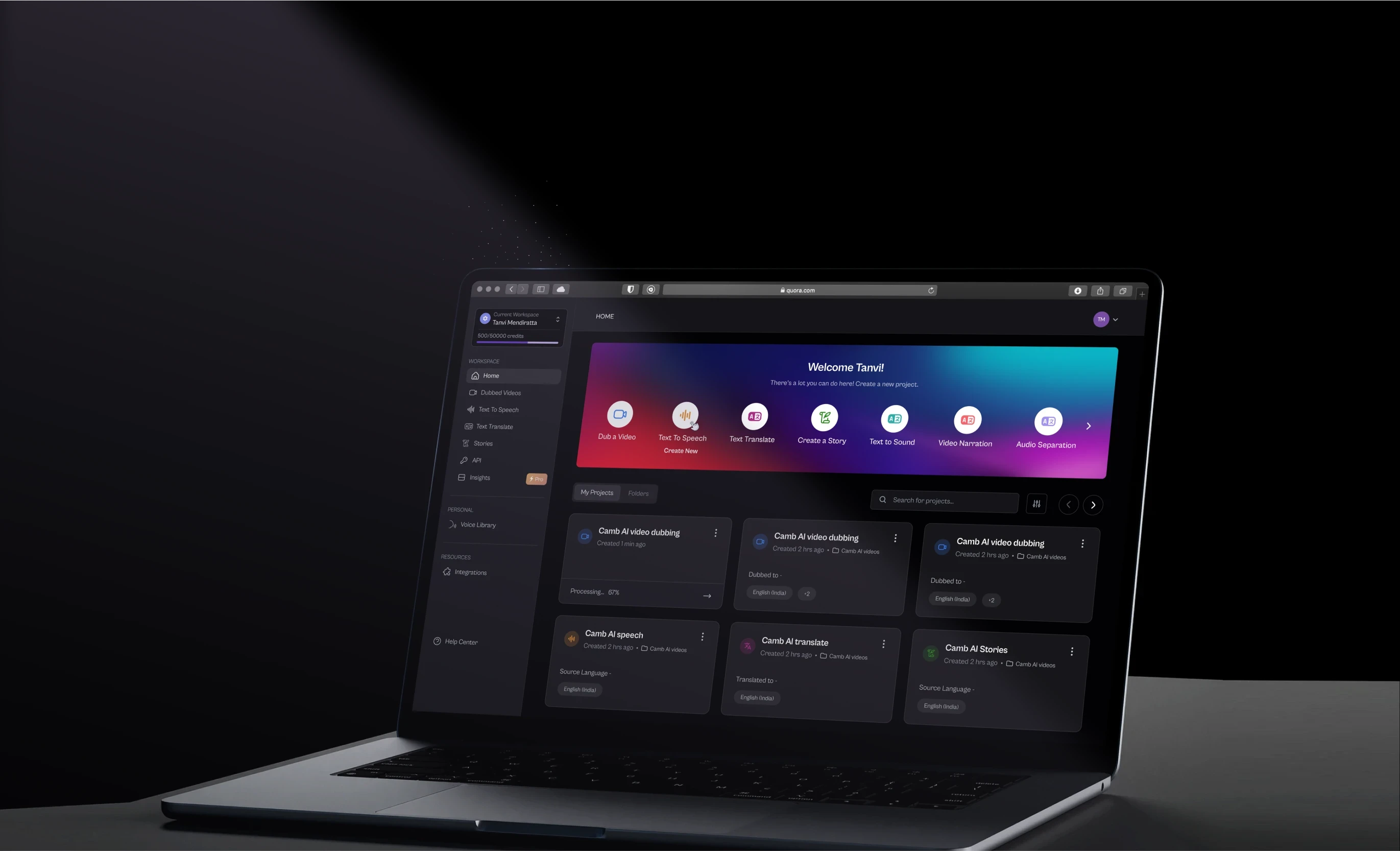

Your users aren't reading your screens — they're glancing at them for half a second and making a call. Screen design is what controls that call. This is the complete guide to getting it right, from concept to high-fidelity.

Screen design isn't decoration. It's the difference between a product that converts and one that doesn't.

Isometric SaaS-themed illustration featuring floating UI components, mobile screens, controls, and interface elements arranged in a futuristic composition.

Screen after screen, your users are making split-second judgments about your product. Whether it's a sign-up form, a dashboard they open every morning, or an error state they hit unexpectedly — every screen either builds trust or quietly chips away at it. That's the job of screendesign, and it's one most product teams underestimate until the metrics start telling them otherwise.

In this guide, we walk through what screen design actually means, the principles that make it work, the process behind it, and the tools teams use to get it right. If you're building a SaaS product, a mobile app, or any digital interface, this is the foundation that has to be solid before anything else.

TL;DR

  • Screendesign is the discipline of planning and composing everything a user sees and interacts with on a screen — layout, color, type, navigation, and interaction, all working together.

  • Good screen design starts before any tool is opened: define what the system is to its users before designing how it looks.

  • Users scan screens, they don't read them — structure every screen to support scanning, not careful reading.

  • Core components include layout and hierarchy, scannability, typography, color, navigation patterns, visuals, and medium-matching.

  • In SaaS, every screen has one job — and most failing screens are trying to do three.

  • Screen design directly affects conversion, activation, retention, and how credible a product appears to buyers and investors.

  • The process runs: define purpose → map information architecture → wireframe → build a style guide → high-fidelity design → test with real users.

  • Figma is the dominant design tool; Screenlane and Mobbin are the leading inspiration and reference platforms.

  • Most screen design mistakes point to skipped process steps, not bad visual taste.

What Is Screendesign?

Screendesign is the practice of deciding what goes on a screen, where it goes, and why — across websites, mobile apps, SaaS dashboards, and anything else where a person interacts with a digital interface through a display.

It's not just about making things look good. Good screen design sits at the intersection of visual aesthetics, information architecture, interaction logic, and user psychology — for the full picture of what UI/UX design actually involves, screen design is the output layer where all of those disciplines converge. At Groto, we think of it as the practice of making every screen do its job clearly — guiding attention, communicating hierarchy, and reducing friction at every step.

One distinction worth drawing early: screen design is not the same as front-end development. Design defines what appears and why it's arranged that way. Development defines how it gets built. Both matter, but conflating them is one of the most common reasons screen-level decisions get made too late in the process.

The UX/UI checklist top SaaS teams actually use

15 essential checks covering onboarding, conversions, and retention. Spot quick wins and fix friction before it costs you signups.

No Spam. Free Lifetime

Start with Concept, Not with Screens

This is the principle most teams skip, and it's the one that causes the most rework downstream.

Before any screen is sketched, a team needs a clear answer to a more fundamental question: what is this system to its users? Not how it looks — what it is. What mental model does it create? What metaphor does it operate on? How does it fit into the user's existing world?

Designers who start directly in a design tool — placing buttons, picking colors, drawing navigation bars — are designing how the system presents itself before they've defined what the system is. Those decisions often have to be undone. Time spent on interaction details without a well-defined underlying conceptual structure is frequently wasted.

The practical implication for any product team: before touching a design tool, align on the product's conceptual model. Document it. Let it constrain the screen design decisions that follow. The visual layer should express the concept — not define it.

What Makes a Good Screen: 3 Properties Every SaaS Screen Must Have

UX framework infographic explaining three essential properties every SaaS screen should have: single job clarity, perceptual hierarchy, and predictable behaviour.

Before diving into components and process, there's a simpler diagnostic worth understanding first. A well-designed screen — especially in a SaaS product — has three properties. When all three are present, the screen feels effortless. When any one is missing, the screen creates friction that compounds across every user session.

01 — Single-Job Clarity

The screen has one dominant purpose. Every element either serves that purpose — or is absent. When this is present, the user knows immediately why they're on this screen. When it's missing, they hesitate before every action and re-read the screen trying to orient themselves.

Diagnostic: Can you describe this screen's job in one sentence? If not, the screen has a problem that no amount of visual polish will fix.

02 — Perceptual Hierarchy

The most important element registers as the most important — in size, weight, position, or contrast — without requiring the user to read the screen to understand its structure. When this is present, users read the screen in the intended sequence. When it's missing, they scan randomly and miss the primary CTA or key data point entirely. The techniques that make this work are covered in depth in the guide on emphasis in design

Diagnostic: Point to the most important element on the screen. Is it immediately obvious to someone seeing it for the first time?

03 — Predictable Behaviour

The user knows what will happen when they act. CTAs are unambiguous. Navigation is consistent. State changes are signalled before they occur. When this is present, users act without hesitation and error rates drop measurably. When it's missing, users second-guess every click and avoid irreversible actions — which in a productivity tool means they avoid doing things the product needs them to do.

Diagnostic: Does the user know what this button does before clicking it?

Core Components of Screen UI Design

Screen UI design framework diagram highlighting core components such as layout hierarchy, typography, navigation patterns, scannability, color systems, and supporting visuals.

Once the conceptual foundation is clear, screen design works across several overlapping layers simultaneously. Get one layer wrong and it ripples upward through everything above it. These layers are all expressions of the 13 principles of design — contrast, balance,proximity, hierarchy — applied at the screen level. 

Layout and Visual Hierarchy

Layout is the foundation. It determines where every element lives on a screen and how the eye moves through the content. A strong layout creates visual hierarchy — a clear sense of what's most important, what's secondary, and what's contextual detail. The visual design principles that govern this hierarchy are what every screen layout decision draws from. 

  • Grid systems keep elements aligned and proportional across screen sizes — the guide on types of grids and their importance in modern design covers which grid structure fits which screen complexity.

  • Proximity groups related elements and separates unrelated ones.

  • Contrast draws the eye toward the most important action or piece of information.

  • White space gives elements room to breathe, reducing cognitive load without removing content.

  • Focal points ensure users always have a clear answer to "where do I look first?"

Scannability

Users almost never read screens carefully. They scan — quickly moving across the interface looking for anything that matches their goal. This has a direct consequence for how screens should be structured.

  • Break information into headings, bullets, lists, and visual groupings rather than long prose.

  • Keep labels and link text short and immediately recognizable.

  • Display information visually where possible — a chart communicates faster than a paragraph of numbers.

  • Prioritize the most important content for the top and left of the screen, following natural reading patterns.

  • Avoid burying key actions in text or hiding navigation in unconventional locations.

Scannability isn't a visual preference — it's a behavioral reality. Screens that require careful reading create friction; screens that support scanning reduce it.

Typography

Type shapes how readable and trustworthy a screen feels. It's one of the most underestimated levers in screen UI design.

  • Font choice communicates tone — a fintech product has different type requirements than a consumer wellness app.

  • A clear typographic hierarchy (heading → subheading → body → caption) guides users through content without confusion.

  • Line height and letter spacing affect legibility at scale, especially on mobile — the guide on what tracking does to legibility at scale explains the mechanics behind this and how to calibrate it correctly. 

  • Consistent typographic systems — defined in a style guide — prevent screens from feeling visually fragmented across a product.

Color Scheme

Color does two jobs simultaneously: it communicates meaning, and it establishes identity.

  • A color system defines primary, secondary, and semantic colors (success, warning, error, neutral).

  • Color contrast ratios are a core accessibility requirement — not an optional enhancement.

  • Background and foreground relationships must hold up across different device brightness settings and ambient lighting conditions.

  • Brand colors inform the palette, but functional UX requirements should govern how and where they're applied.

Navigation and Interaction Patterns

How users move between screens matters as much as what's on any individual screen.

  • Navigation placement (top bar, sidebar, bottom nav) should match both platform conventions and the product's structural complexity.

  • Interaction affordances — buttons that look tappable, links that look clickable — reduce user hesitation without requiring explanation.

  • Transitions and micro-interactions communicate state changes and provide feedback that keeps users oriented.

  • Consistent patterns across screens reduce the learning curve for new users and reduce cognitive effort for experienced ones.

Icons, Imagery, and Supporting Visuals

Visual elements support comprehension when used well — and create noise when used carelessly.

  • Icons should be immediately recognizable; if they require explanation, they're not doing their job.

  • Imagery should serve the content, not decorate the page.

  • Illustrations work particularly well for empty states, onboarding screens, and error moments.

  • Every visual element should have a functional reason for being on the screen.

Match the Medium

One of the clearest signs of a poorly considered interface is a screen that doesn't account for the constraints and capabilities of the device it appears on — the guide on mobile-first responsive design best practices covers how to approach this structurally from the start.  A layout built for desktop that simply shrinks for mobile. A visual metaphor that doesn't translate to touch. Subtle colors on a screen that can't render them accurately.

Screen design has to account for:

  • Screen size and resolution across the target device range.

  • Input method — touch, mouse, keyboard, voice — and how it affects what affordances are appropriate.

  • Ambient context — a mobile app used outdoors needs different contrast considerations than a desktop tool used in an office.

  • The rendering limitations of the target medium.

Getting this right isn't a polish step. It's a structural decision that should be made at the beginning of the design process, not retrofitted at the end.

The Screen Job Framework: Every Screen Has One Job

UX framework infographic explaining five screen intent categories — orient, act, decide, recover, and advance — with associated design principles and user goals.

Here's the thing most guides to screen design get wrong. They catalogue components — here are cards, here are navigation bars, here are modals. That's the vocabulary of screen design, not the grammar. The grammar — the rules that determine whether a screen actually works — comes from understanding what job the screen is supposed to do for the user at that exact moment in the product journey.

In SaaS products especially, screen design is not a layout problem. It's a clarity-of-purpose problem. When a dashboard tries to orient new users, surface power features, and drive an upgrade decision simultaneously, it fails at all three — not because it looks bad, but because no single screen can serve three different user intents without fracturing focus.

At Groto, we use the Screen Job Framework before any screen is built or rebuilt. It defines five screen types by user intent — because the most useful way to organize screens isn't by component type or visual style. It's by what the user actually needs to accomplish the moment they arrive.

The 5 Screen Types

01 — ORIENT (Home dashboard, project overview) 

User intent: "Where am I? What's the state of things?" 

Design rule: Information before interaction. Data dominates, controls recede.

Fatal mistake: Placing CTAs and upgrade prompts on an orient screen — they compete with situation awareness and the screen fails at its primary job.

02 — ACT (Forms, editor, config panels) 

User intent: "I need to complete a specific task right now." 

Design rule: Remove every element not directly serving the task. One primary action only.

Fatal mistake: Surfacing all configuration options simultaneously with no progressive disclosure — intimidating the user before they've started.

03 — DECIDE (Pricing, plan comparison, feature selection) 

User intent: "I need to compare options and make a confident choice." 

Design rule: Anchor one recommendation. Maintain parallel structure across all options.

Fatal mistake: No clear recommended option and asymmetric information per option — the user can't make a fair comparison and defaults to paralysis.

04 — RECOVER (Error states, empty states, zero-results views) 

User intent: "Something went wrong or I've hit a dead end." 

Design rule: Restore confidence. Specific next step required. Never a blank screen. 

Fatal mistake: Generic "Something went wrong" with no specific resolution path — leaving the user stuck at the exact moment their confidence is lowest.

05 — ADVANCE (Post-task confirmations, upgrade prompts, feature discovery) 

User intent: "I just finished something. What's the meaningful next step?" 

Design rule: Acknowledge completion first. One specific, contextual next action. 

Fatal mistake: Generic "success" screen with no contextual next action — leaving the highest-converting moment in the user journey completely unused.

The Multi-Job Trap: Why Most SaaS Screens Fail

Comparative infographic contrasting effective SaaS screen architecture with overloaded dashboards that mix onboarding, analytics, and upgrade prompts in one interface.

The most common screen design failure in SaaS isn't poor visual execution. It's a single screen assigned multiple conflicting jobs — and it happens to almost every product team eventually.

Here's how it plays out. A dashboard gets built with a clear job: situation awareness for activated users. Then onboarding gets added. Then an upgrade prompt banner. Then a feature announcement. Each addition seems reasonable in isolation. The cumulative effect is a screen that has completely lost its purpose.

The broken version looks like this:

  • Job 1 (Orient — new users): Onboarding checklist, progress bar, setup prompts.

  • Job 2 (Orient — power users): 30 metrics, activity feeds, filters, export controls.

  • Job 3 (Advance): Upgrade prompt banner, modal trigger, feature lock icons.

Result: New users are overwhelmed. Power users are irritated by onboarding noise they've already completed. Upgrade prompts are ignored because they appear when the user is trying to work, not evaluate plans. All three jobs fail.

The fix isn't removing features. It's separating screens:

  • Screen A (Orient — new user): Onboarding home, shown in the first 7 days. Job: guide to activation.

  • Screen B (Orient — activated user): Main dashboard, shown after activation. Job: situation awareness only.

  • Screen C (Advance): Post-task upgrade prompt, triggered after task completion. Job: contextual conversion.

Each user sees the screen for their stage. Each screen does one job well. Upgrade conversion rises because the prompt appears when the user is confident and receptive — not when they're trying to complete a task.

The Screen Job Audit — 3 Questions

Before designing or redesigning any screen, run through these:

  1. What job was this screen supposed to do? Inferred from the product flow and the user's arrival context.

  2. What jobs is it currently doing? List every element and the intent it serves.

  3. Which jobs belong here — and which need their own screen? Restructure, don't just remove.

The output is a screen with a clear job, a coherent hierarchy, and measurable success criteria — not just a redesigned layout.

Why Screen Design Directly Affects Business Outcomes

Screen design isn't just a design team concern — it's a product and growth concern. Every friction point in a screen costs conversions. Every moment of confusion in an onboarding flow costs retention. Every inconsistent interface pattern costs trust.These outcomes are why digital product design principles treat screen-level decisions as business decisions, not aesthetic ones. 

At Groto, we've seen this pattern repeatedly: teams that treat screen design as decoration pay for it in their metrics later.

The business outcomes most directly shaped by screen-level decisions:

  • Conversion rate — every screen in the acquisition path either removes friction or creates it; the homepage design principles guide covers the highest-stakes screen in that path in detail. 

  • Activation rate — how quickly new users reach their first moment of value is almost entirely a screen design problem.

  • Retention — users stay with products that feel consistent and easy to navigate.

  • Support volume — confusing screens generate support tickets; clear screens reduce them.

  • Perceived credibility — investors, enterprise buyers, and first-time visitors form opinions based on what they see before they experience what a product does.

The Screen Design Process

Flowchart illustrating the screen design process from defining purpose and information architecture to wireframing, styling, high-fidelity design, and usability testing.

A good app screen UI doesn't happen by opening a design tool and making things look polished. It follows a deliberate sequence.

Define the Screen's Purpose

Every screen has a job. Before anything else, define what the user needs to accomplish on this screen and what the product needs the user to do. If those two things are in tension, the screen has a design problem before a single element is placed.

Map the Information Architecture

Decide what content belongs on this screen, what belongs elsewhere, and how it's prioritized. Hierarchy decisions happen here — before they're expressed visually. Teams that skip this step consistently produce screens that are either overloaded or confusingly sparse.

Wireframe the Layout

Start low-fidelity. Wireframes define structure without the distraction of color and type, making it easier to evaluate whether the layout works for the user's task. Many teams skip this step and discover the problem during development — which is significantly more expensive to fix.

Build a Style Guide

Before moving to high-fidelity screens, a style guide documents the visual rules that will govern the entire product. This is the single most important step for ensuring consistency across a product with many screens and multiple contributors — for teams ready to move beyond a style guide into a full component system, the guide on design systems for SaaS products covers what that transition involves. 

Style guide components typically include:

  • Page and component layout rules.

  • Typographic scale and font role assignments.

  • Color system with use-case documentation.

  • Icon library and imagery guidelines.

  • Component states: default, hover, focus, disabled, error.

  • Interaction and motion principles.

  • Accessibility standards including contrast ratios.

  • Tone of language guidelines for UI copy and error messaging.

Design High-Fidelity Screens

With structure and rules established, high-fidelity design fills in the detail. This is where visual craft matters — but it should be constrained by the decisions already made, not restarting from zero.

Test and Iterate

Screens should be tested with real users before they're handed to development. Usability issues found at the design stage cost a fraction of what they cost after launch. No amount of craft in the high-fidelity work substitutes for real-world validation.

Screen Design Tools and Inspiration Resources

The right tool depends on team size, collaboration needs, and where the team is in the process.

Design tools:

  • Figma — the current industry standard for collaborative UI screen design; supports components, auto-layout, and design systems natively and works entirely in the browser.

  • Adobe XD — a strong option for teams already in the Adobe ecosystem.

  • Sketch — a well-established tool for Mac-based design teams, particularly for component-heavy work.

For a detailed comparison of all three, the Figma vs Sketch vs Adobe XD guide covers the trade-offs by team size, workflow, and use case. 

Inspiration and reference platforms:

  • Screenlane — a curated gallery of real app screens organized by screen type (onboarding, dashboards, sign-up, checkout). Useful for benchmarking how other products handle specific UI moments without having to download and explore those apps manually.

  • Mobbin — one of the most comprehensive screen design reference libraries available, with deep filtering by app, screen type, and UI pattern. When comparing Mobbin vs Screenlane, Mobbin offers more depth and better filtering while Screenlane is faster to browse for quick inspiration on a specific flow.

  • Dribbble and Behance — broader creative inspiration, though less focused on functional UI patterns and real product flows; for curated examples of screen design applied to live products, the best website design examples collection provides more directly applicable reference points.

For teams looking for a screen design alternative to desktop tools, UI screen design online platforms like Figma and Framer remove installation friction and support real-time collaboration — making them well-suited for distributed teams working across screens simultaneously.

Common Screen Design Mistakes — and What They Signal

These aren't just aesthetic problems. Each typically points to a process gap rather than a craft failure.

  • Inconsistent spacing and alignment — signals the absence of a grid system or a design system that hasn't been enforced.

  • Unclear primary actions — usually means the screen's purpose wasn't defined before design began.

  • Too much content on one screen — a symptom of skipped information architecture work, or the multi-job trap in action.

  • Inaccessible color contrast — signals color was chosen for aesthetics without functional testing or awareness of accessibility standards.

  • Navigation that changes between screens — a design system problem; interaction patterns weren't established before screens were built.

  • No empty states or error states designed — common when teams design only the happy path and treat edge cases as an afterthought.

  • Design that ignores the medium — touch targets too small for mobile, contrast that fails outdoors, layouts that break at non-standard screen sizes.

Conclusion

Screendesign, done well, is one of the highest-leverage investments a product team can make. Here's what to carry forward:

  • Screen design covers conceptual structure, layout, typography, color, navigation, scannability, icons, and interaction — all working together as a system.

  • Every good screen has three properties: single-job clarity, perceptual hierarchy, and predictable behaviour — missing any one creates friction that compounds.

  • The process starts before any tool is opened: define what the product is to its users before designing how it presents itself.

  • Use the Screen Job Framework to assign one intent to every screen before design begins — Orient, Act, Decide, Recover, or Advance.

  • The multi-job trap is the most common cause of failing SaaS screens — the fix is separating jobs across screens, not layering them onto one.

  • Users scan screens, they don't read them — design for scanning by breaking content into headings, lists, and visual groupings.

  • Design must match its medium — screen size, input method, context of use, and rendering constraints all shape what good screen design looks like.

  • Business metrics — conversion, activation, retention, support volume — are directly shaped by decisions made at the screen level.

  • A style guide is the mechanism that holds screen design decisions together across a product and a team.

  • The most expensive screen design mistakes happen when process steps are skipped, not when visual taste differs.

  • Testing with real users before development is the most effective way to catch screen-level problems while they're still cheap to fix.

Have a project in mind?

Let’s talk through your idea and see what makes sense.

Harpreet Singh

Founder at Groto

Have a project in mind?

Let’s talk through your idea and see what makes sense.
Harpreet Singh

Founder at Groto

FAQ

Everything you were going to ask (and a few things you didn’t know to)

What is the difference between screen design and UX design?

Screen design is one component within the broader discipline of UX design. UX design encompasses the full user experience — research, journey mapping, content strategy, usability testing, and more. Screen design specifically addresses the visual and structural composition of individual screens within that experience. You can't have good UX without good screen design, but screen design alone doesn't constitute a complete UX strategy.

What does a screen designer do?

A screen designer defines the visual layout of a digital interface — what appears on each screen, where it's positioned, and how the visual hierarchy guides the user through their task. They typically work within a style guide or design system, collaborate closely with UX researchers and front-end developers, and produce high-fidelity mockups ready for handoff to engineering.

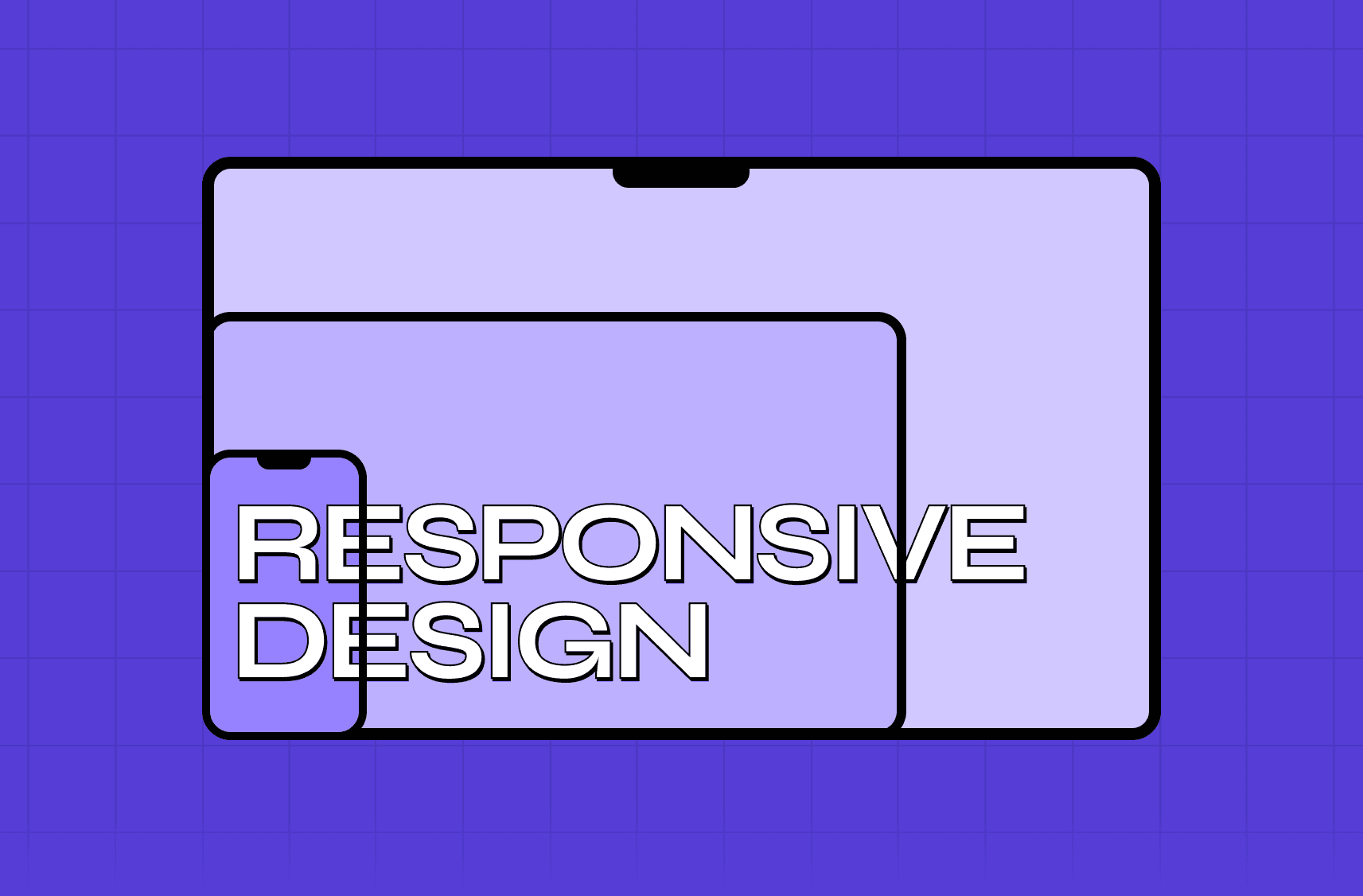
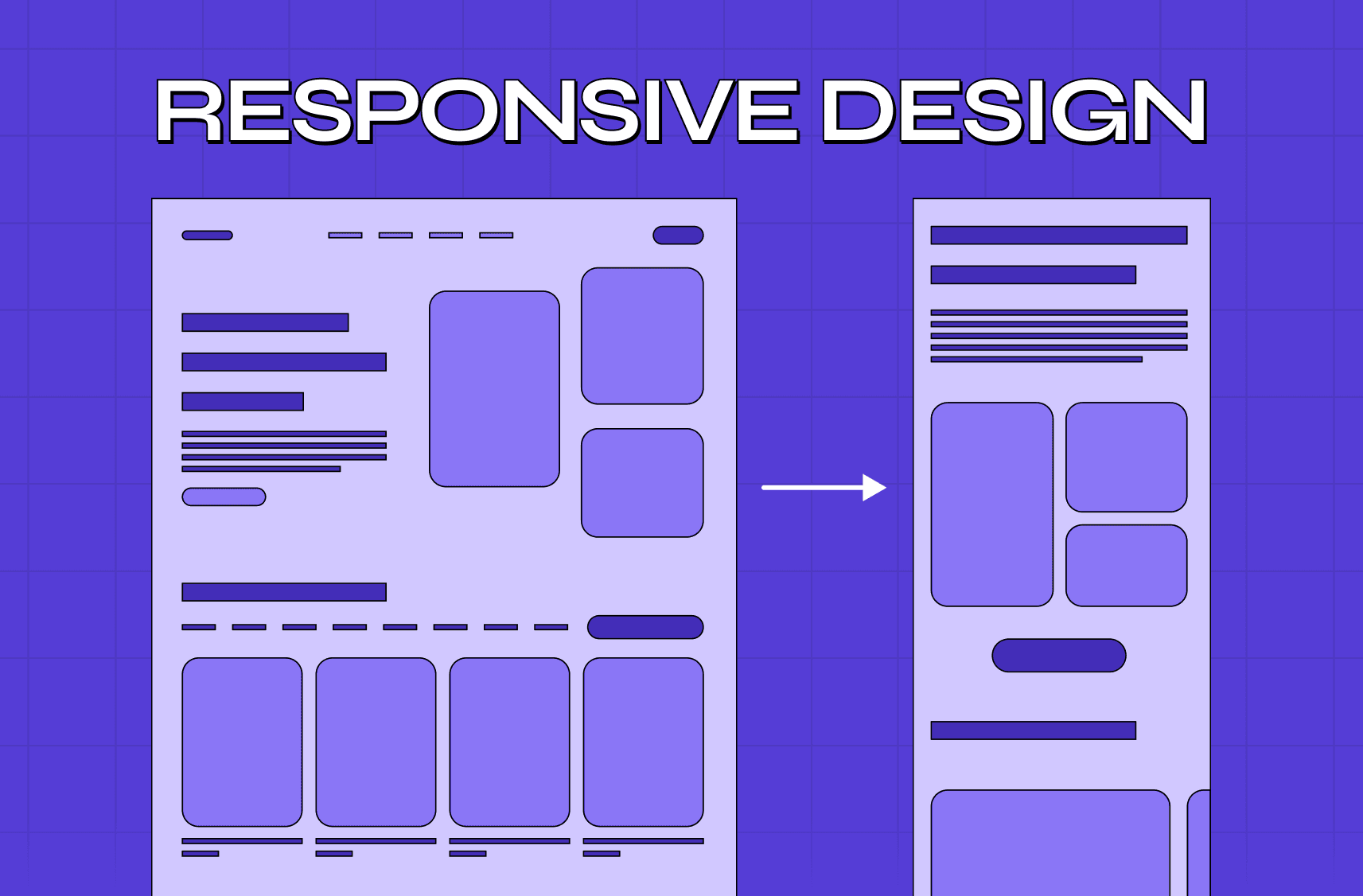
How do I design app screens for multiple screen sizes?

This falls under responsive design — building layouts that adapt to different viewport sizes rather than breaking at them. The standard approach involves defining breakpoints (screen-width thresholds), designing mobile-first (starting with the most constrained layout and scaling up), and using components that reflow intelligently as viewport size increases. Tools like Figma's auto-layout feature make this significantly more manageable than manual sizing.

What should a screen design style guide include?

A thorough style guide covers: layout and grid rules, typographic scale and font role assignments, the color system with documented use cases, the icon library, all component states (default, hover, active, disabled, error), interaction and animation principles, accessibility standards including contrast ratios, and tone-of-language guidelines for UI copy. The style guide is what ensures every screen in a product feels like it belongs to the same system — regardless of which designer built it.

Can you do effective screen design without a full design system?

Yes, but the cost compounds quickly. Without a design system, every new screen is essentially designed from scratch — which creates inconsistency, slows production, and makes future updates painful to roll out. Even a lightweight style guide covering color, type, and core components provides a meaningful return on investment. A full design system pays for itself in the time saved on every subsequent screen and in the consistency it enforces automatically.

What does "screen design for home" mean — is it different from regular app screen design?

Not in terms of principles, but context changes the requirements significantly. Screen design for home refers to interfaces built for home environments — smart home apps, TV and streaming UIs, home automation dashboards, and connected device controls. The big differences: home screens are often viewed from a distance, operated by multiple household members with varying technical comfort, and used in low-light conditions. That means larger touch targets, higher contrast, simpler navigation, and much more attention to legibility at a distance. The core components — hierarchy, scannability, color, typography — are identical. How they're calibrated shifts considerably.

What is the difference between screen design and UX design?

Screen design is one component within the broader discipline of UX design. UX design encompasses the full user experience — research, journey mapping, content strategy, usability testing, and more. Screen design specifically addresses the visual and structural composition of individual screens within that experience. You can't have good UX without good screen design, but screen design alone doesn't constitute a complete UX strategy.

What does a screen designer do?

A screen designer defines the visual layout of a digital interface — what appears on each screen, where it's positioned, and how the visual hierarchy guides the user through their task. They typically work within a style guide or design system, collaborate closely with UX researchers and front-end developers, and produce high-fidelity mockups ready for handoff to engineering.

How do I design app screens for multiple screen sizes?

This falls under responsive design — building layouts that adapt to different viewport sizes rather than breaking at them. The standard approach involves defining breakpoints (screen-width thresholds), designing mobile-first (starting with the most constrained layout and scaling up), and using components that reflow intelligently as viewport size increases. Tools like Figma's auto-layout feature make this significantly more manageable than manual sizing.

What should a screen design style guide include?

A thorough style guide covers: layout and grid rules, typographic scale and font role assignments, the color system with documented use cases, the icon library, all component states (default, hover, active, disabled, error), interaction and animation principles, accessibility standards including contrast ratios, and tone-of-language guidelines for UI copy. The style guide is what ensures every screen in a product feels like it belongs to the same system — regardless of which designer built it.

Can you do effective screen design without a full design system?

Yes, but the cost compounds quickly. Without a design system, every new screen is essentially designed from scratch — which creates inconsistency, slows production, and makes future updates painful to roll out. Even a lightweight style guide covering color, type, and core components provides a meaningful return on investment. A full design system pays for itself in the time saved on every subsequent screen and in the consistency it enforces automatically.

What does "screen design for home" mean — is it different from regular app screen design?

Not in terms of principles, but context changes the requirements significantly. Screen design for home refers to interfaces built for home environments — smart home apps, TV and streaming UIs, home automation dashboards, and connected device controls. The big differences: home screens are often viewed from a distance, operated by multiple household members with varying technical comfort, and used in low-light conditions. That means larger touch targets, higher contrast, simpler navigation, and much more attention to legibility at a distance. The core components — hierarchy, scannability, color, typography — are identical. How they're calibrated shifts considerably.

More Articles

Extreme close-up black and white photograph of a human eye

Let’s bring your vision to life

Tell us what's on your mind? We'll hit you back in 24 hours. No fluff, no delays - just a solid vision to bring your idea to life.

Profile portrait of a man in a white shirt against a light background

Harpreet Singh

Founder and Creative Director

Get in Touch

Extreme close-up black and white photograph of a human eye

Let’s bring your vision to life

Tell us what's on your mind? We'll hit you back in 24 hours. No fluff, no delays - just a solid vision to bring your idea to life.

Profile portrait of a man in a white shirt against a light background

Harpreet Singh

Founder and Creative Director

Get in Touch

Extreme close-up black and white photograph of a human eye

Let’s bring your vision to life

Tell us what's on your mind? We'll hit you back in 24 hours. No fluff, no delays - just a solid vision to bring your idea to life.

Profile portrait of a man in a white shirt against a light background

Harpreet Singh

Founder and Creative Director

Get in Touch